
Both speaker and participant sides require an internet environment. internet speed verification is possible at https://fast.com/.
- internet environment of 30mbps or higher recommended
- Minimum 10mbps internet environment required
How to Achieve Accurate Transcription and Translation Using Equipment
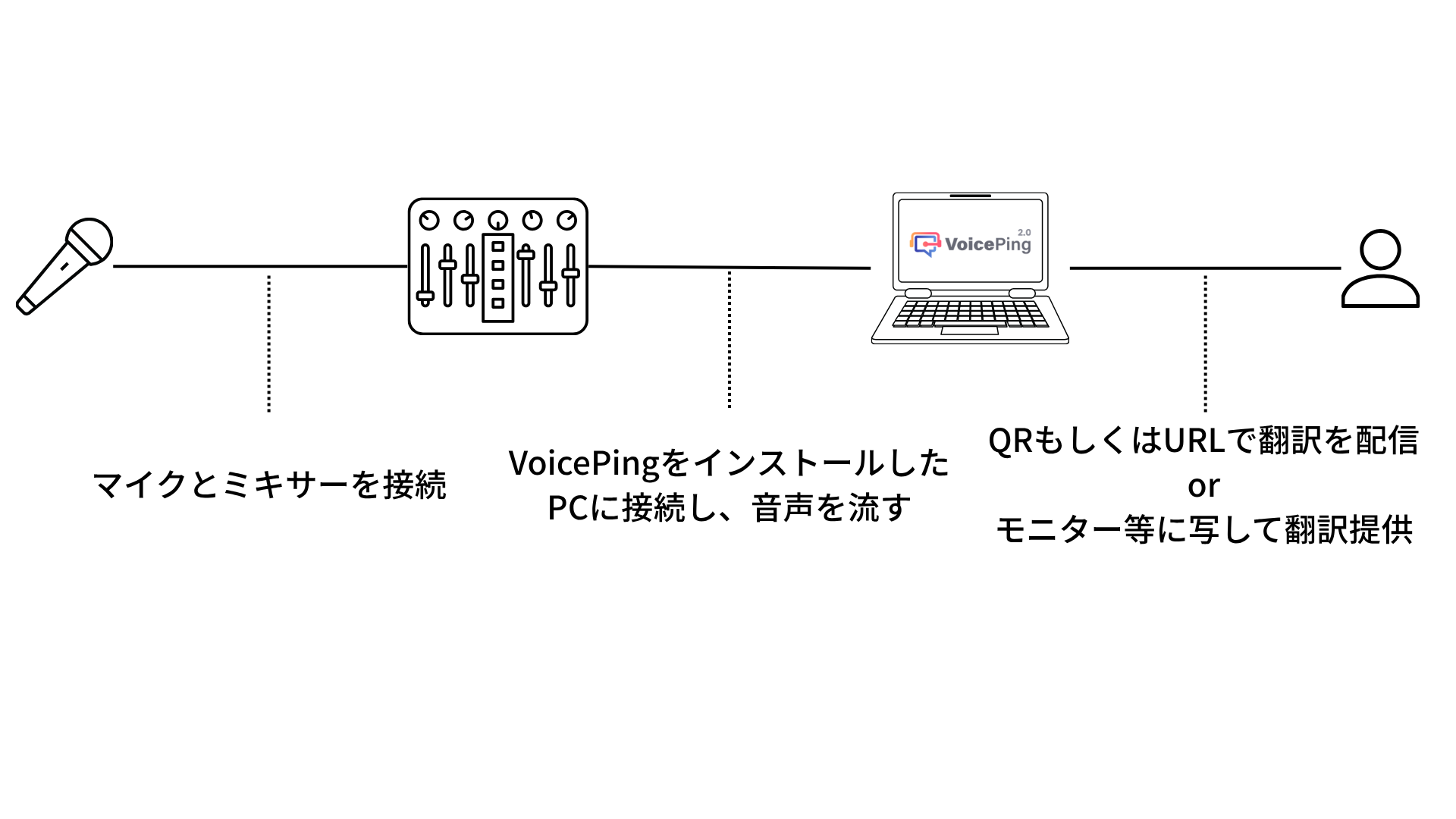
This is not necessary for web events/webinars in a format where you speak in front of a PC. VoicePing is normally used for web meetings as well, and high-precision transcription and translation is possible even with a PC microphone. However, at events, accuracy may decrease due to noise and howling. Therefore, we recommend using an audio interface. For details, see Audio Mixer Setup Method.When Distributing Subtitles via QR Code/URL
Preparation
-
On the webinar host side, install VoicePing, move to virtual office mode, and create a meeting room.
- Confirm that VoicePing’s virtual office mode is turned on
- If using from a web browser instead of the desktop app, check if web virtual office mode is available for your status
-
After creating a meeting room, enable the listener web app from the meeting room settings.
- When you enable the listener web app, you can obtain a QR code/URL that webinar participants can join
- Please confirm that the option “Enable listener microphone” is off
Practice/Live
- Distribute the listener mode QR code or URL to customers and encourage participation.
- Invite webinar speakers to the meeting room created in preparation as VoicePing regular users or web guests.
-
Speakers should check if they can set the language they speak as the recognition language.
- Settings can be made from the top bar of the chat box that appears when you select chat from the control bar at the bottom of the screen
- If speakers are participating as VoicePing regular users or web guests from separate devices, translation is possible even if conversations are conducted in different languages simultaneously
- Unmute in VoicePing and start speaking to actually start transcription and translation.
When Incorporating Translation Subtitles into Screen Configuration with OBS and Streaming on Youtube or Zoom
Preparation
-
On the webinar host side, move to VoicePing’s virtual office mode and prepare a meeting room.
- Confirm that VoicePing’s virtual office mode is turned on
- If using from a web browser instead of the desktop app, check if web virtual office mode is available for your status
- Enter the created meeting room, unmute the microphone, select chat from the control bar at the bottom of the screen, and press the full-screen icon from the top bar of the chat box that appears.
-
Subtitles will be displayed when you start speaking.
- You can also change the target translation language from the top right of the screen
- Consider how to incorporate it into the screen configuration with OBS while displaying subtitles
Practice/Live
-
Invite webinar speakers to the meeting room created in preparation as VoicePing regular users or web guests.
- If there are multiple speakers, basically all speakers should participate from separate devices
-
Speakers should check if they can set the language they speak as the recognition language.
- If speakers are participating from separate devices, translation is possible even if conversations are conducted in different languages simultaneously
- Unmute in VoicePing and start speaking to actually start transcription and translation.