How to Achieve Accurate Transcription and Translation Using Equipment
Accuracy may decrease due to noise and howling at the venue, so we recommend using an audio interface.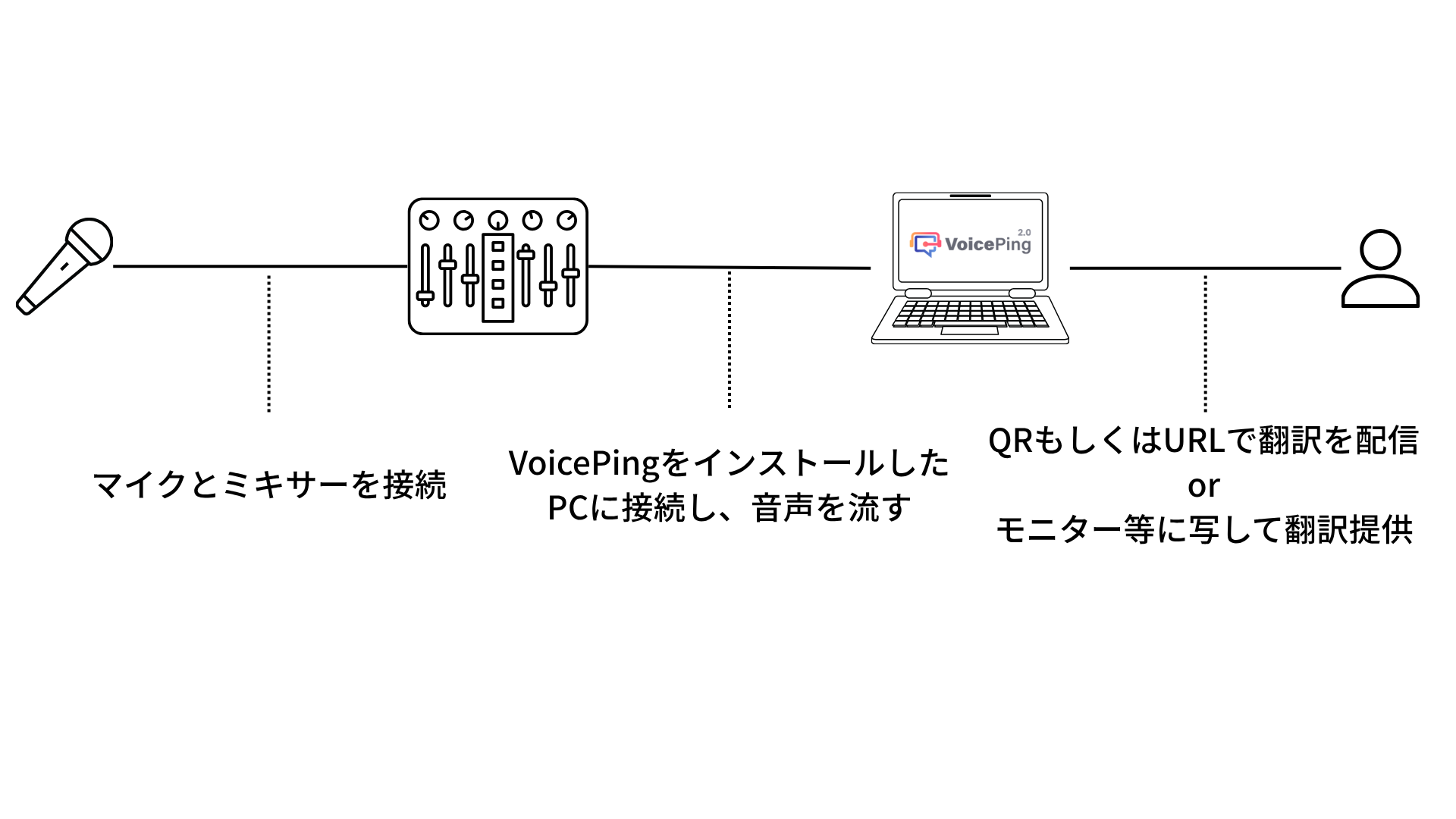
Recommended Equipment List
Below is a list of equipment that has been actually used at past events and confirmed to work (we do not provide these):| Equipment Name | URL |
|---|---|
| ur22mkii | steinberg.net |
| STEINBERG UR22mkII Audio Interface 24bit/192kHz | soundhouse.co.jp |
| Yamaha AG03MK2 White 6-Channel Live Streaming Loopback Mixer/USB Interface | amazon.com |
| USBPre 2 | sounddevices.com |
| Yamaha (YAMAHA) Live Streaming Mixer 3 Channel AG03MK2 W | amazon.co.jp |
| TF5 Digital Mixer | soundhouse.co.jp |
| ZOOM AMS-24 | amazon.co.jp |
| BEHRINGER USB Audio Interface UM2 | amazon.co.jp |
| MACKIE MIX5 Compact Analog Mixer | soundhouse.co.jp |
| Yamaha (YAMAHA) Live Streaming Mixer 6 Channel AG06MK2 W | yamaha.com |
For Seminars (When There Is 1 Speaker)
Preparation
- Please refer to Live Translation Subtitles for Seminars.
- If an audio interface or similar is connected, please select the microphone from the main screen.
For Panel Discussions (When There Are 2 or More Speakers)
Precautions
Configuration Patterns
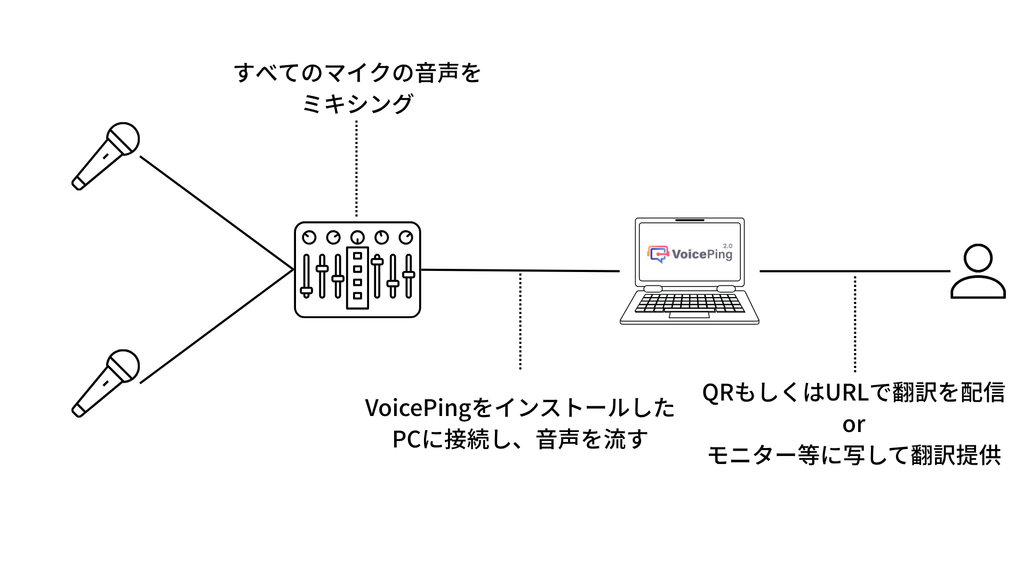
Pattern 1: When Speaker Separation Is Not Needed Mix audio from all microphones into one audio source using an audio interface, and connect it to a PC with VoicePing installed to provide real-time translation.

Operation Method
- On the event host side, move to VoicePing’s virtual office mode and prepare a meeting room.
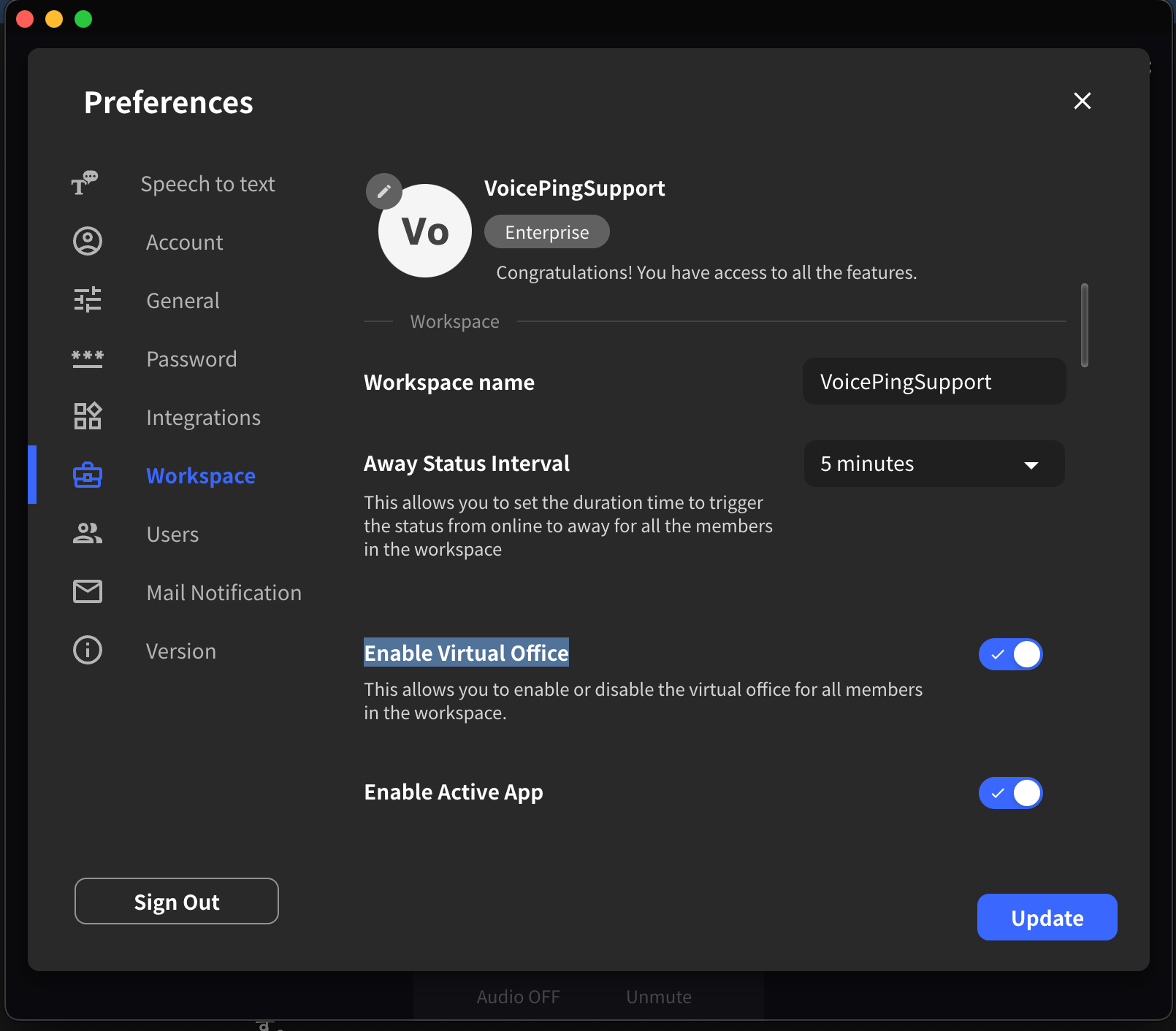
- Confirm that VoicePing’s virtual office mode is turned on
- If using from a web browser instead of the desktop app, check if the web virtual office mode is available for your status
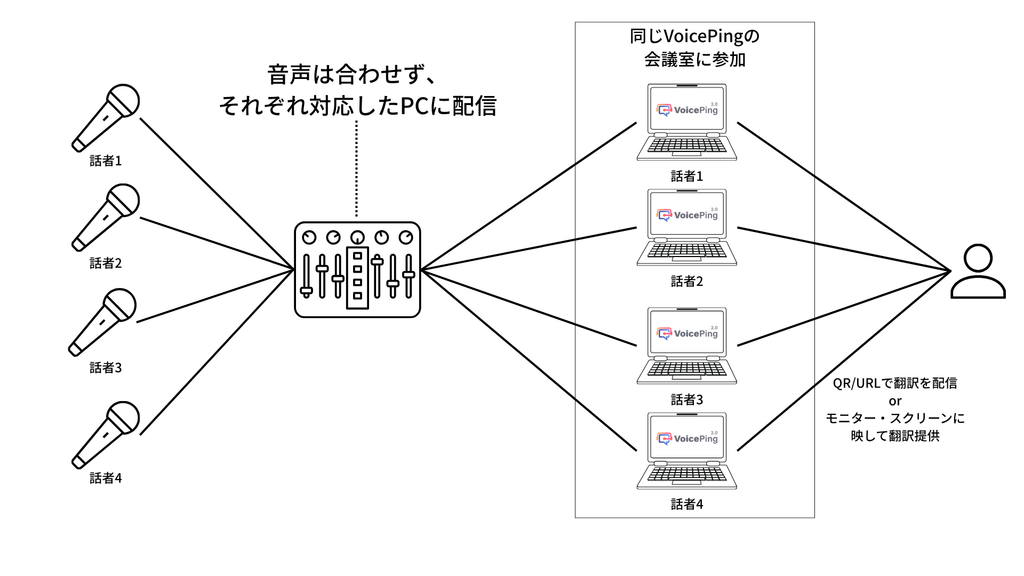
- Each user enters the created meeting room, unmute the microphone, select chat from the control bar at the bottom of the screen, and verify that transcription is working.
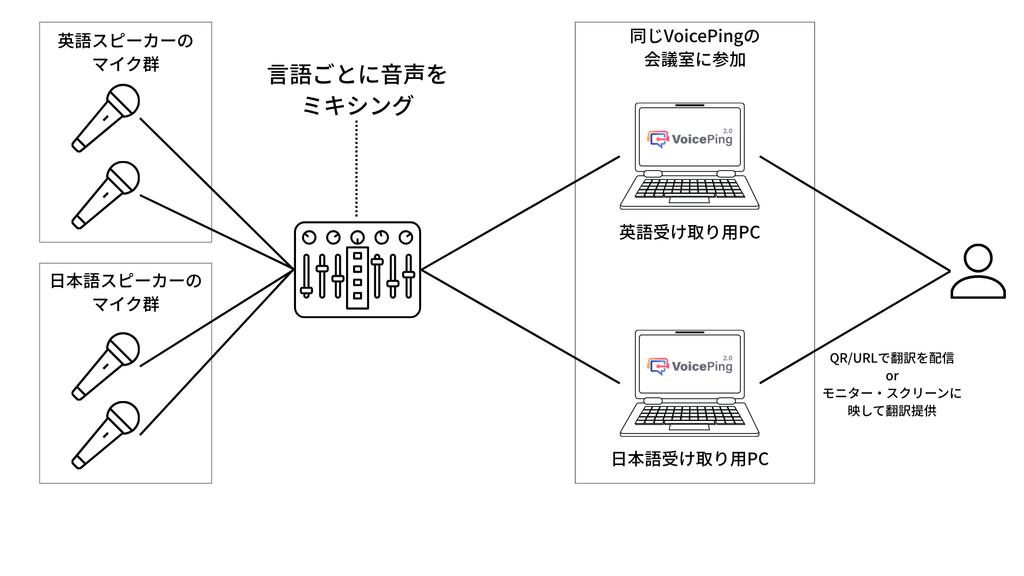
- When connecting and testing an audio interface, please select which microphone to detect from the microphone menu
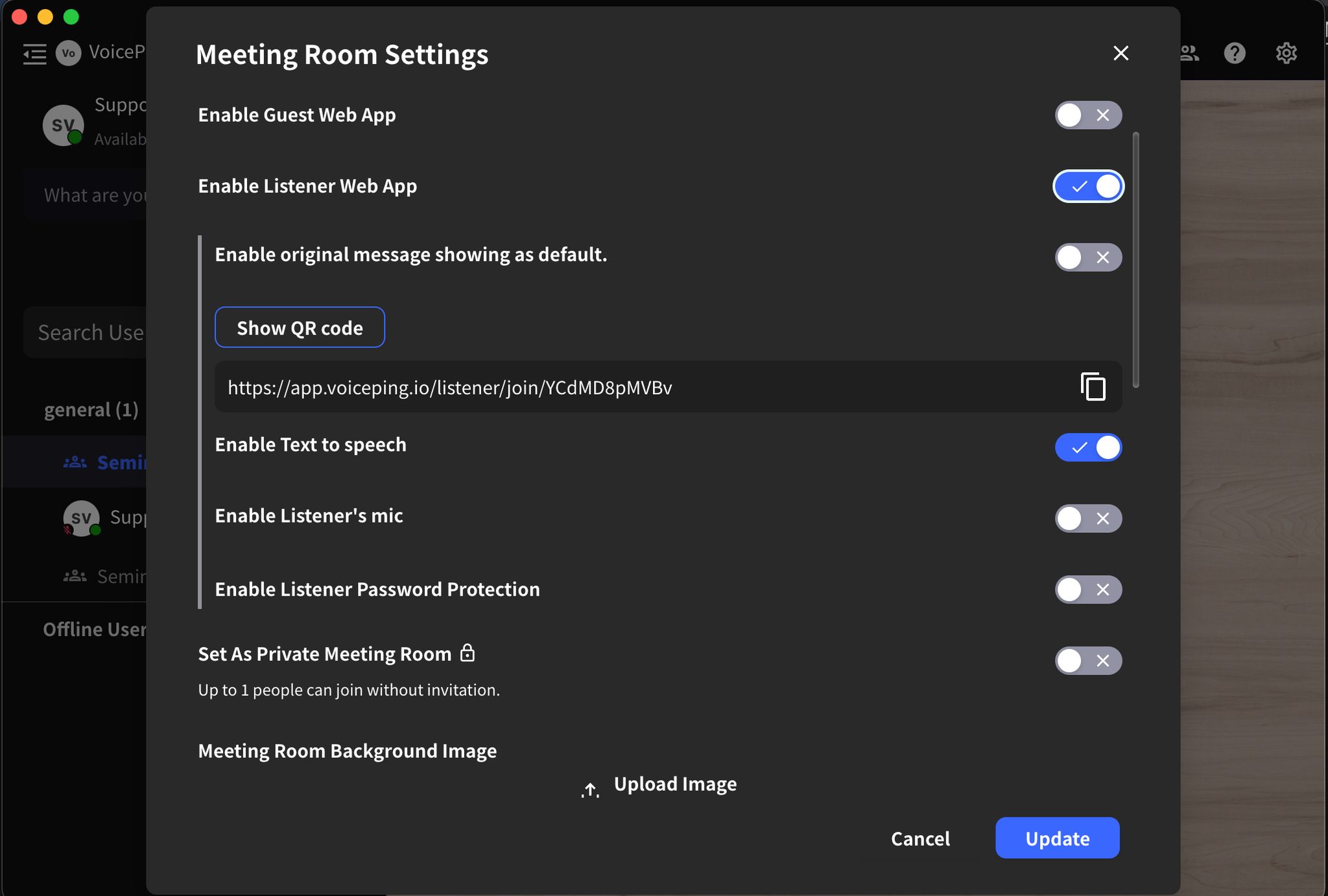
- To distribute translation via QR code, enable the listener web app from the meeting room settings


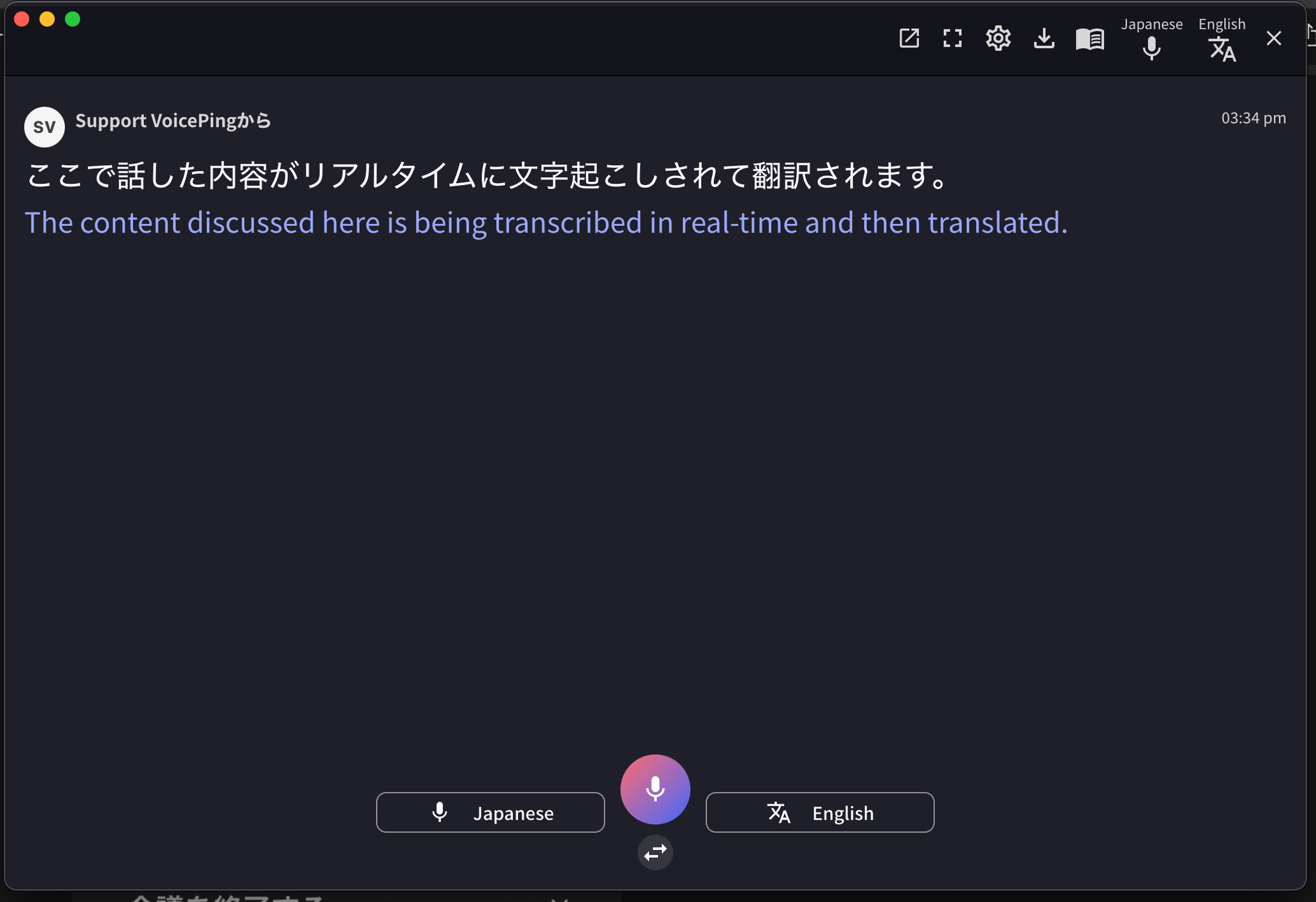
- If you want to display translation subtitles on venue monitors/screens, press the full-screen icon from the top bar of the chat box