
How to Change Plans
Free Plan to Paid Plan
1. PC
Free Plan to Small Plan
- Click “Upgrade Free Plan”
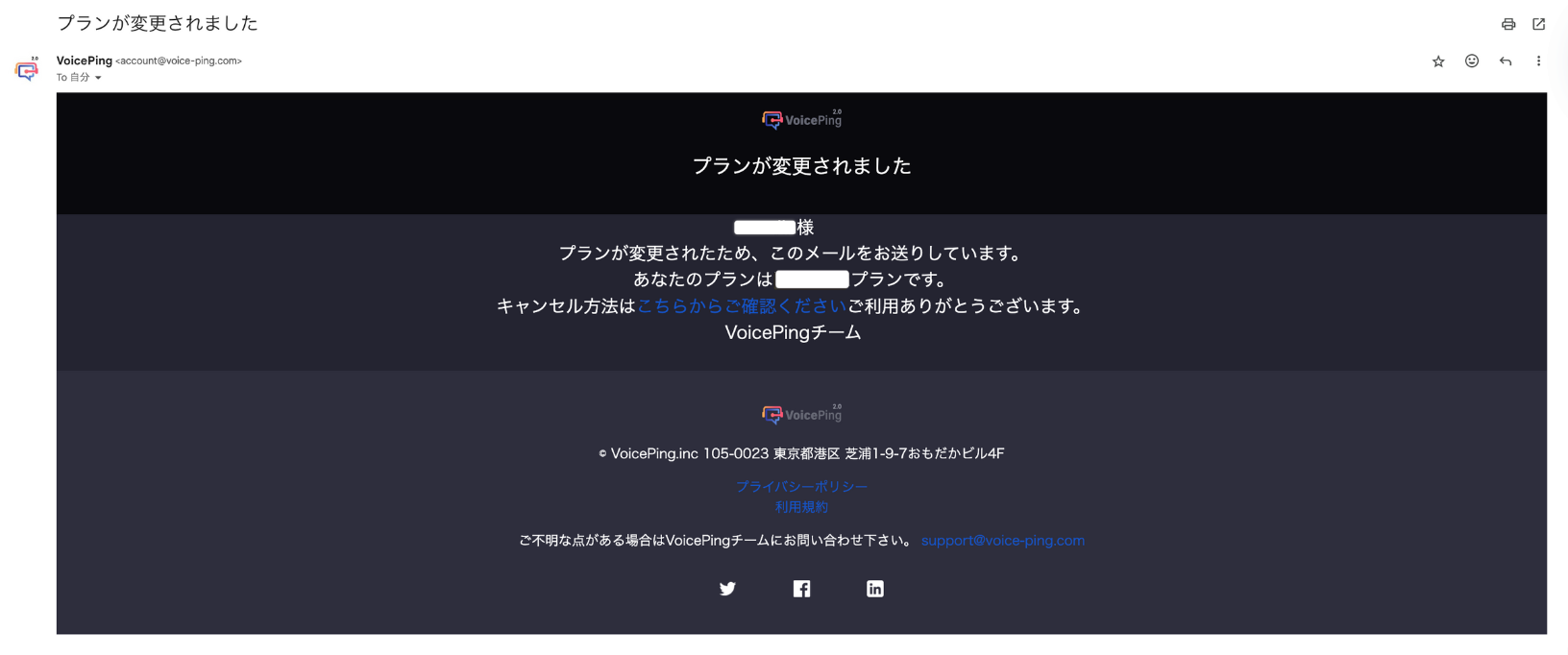
- Click “Change Plan” then “Upgrade Plan”
- Review the paid plan information and click “Purchase”
- Enter credit card information to complete payment

Free Plan to Premium Plan
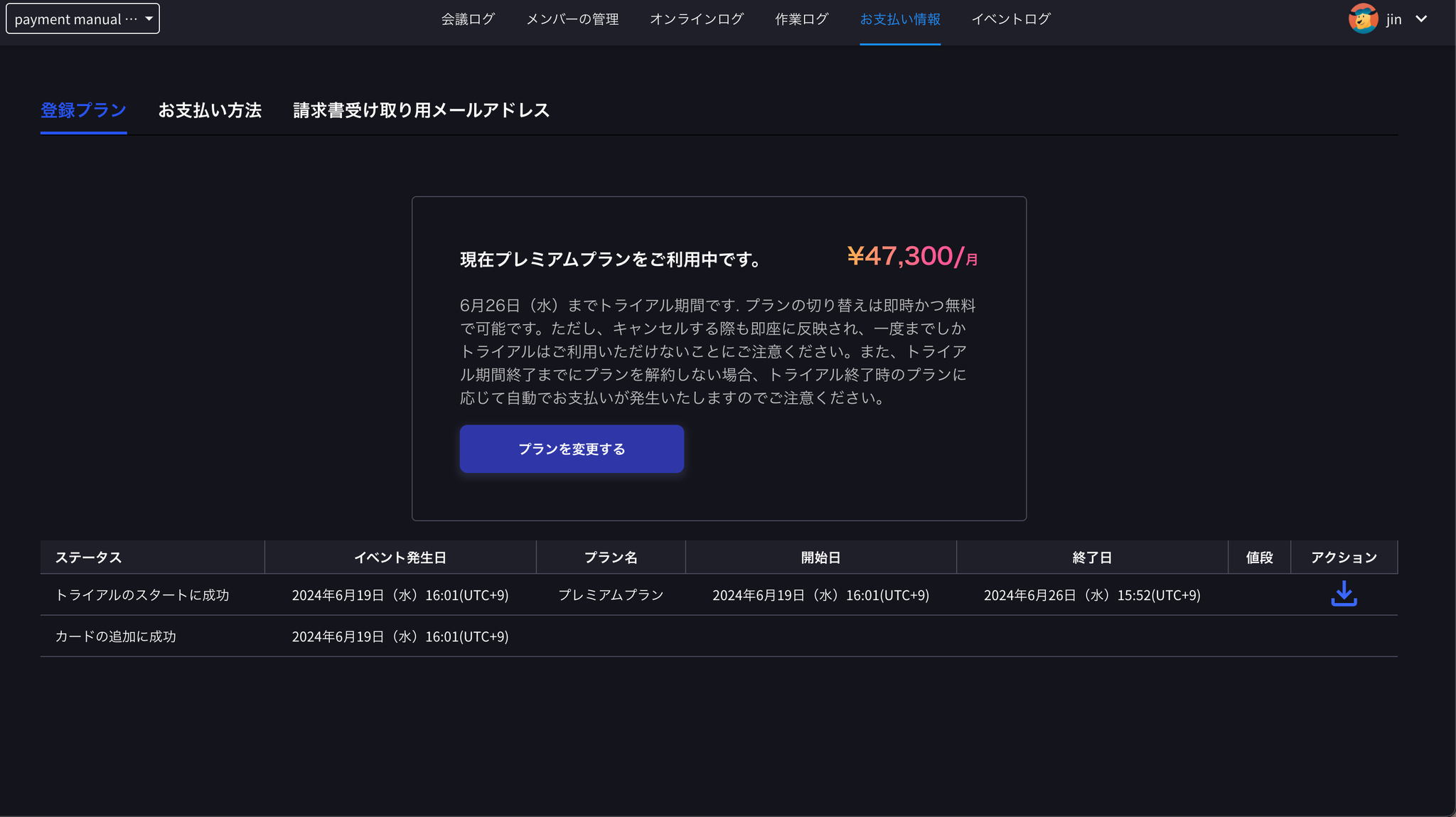
The Premium Plan offers a 1-week trial period before purchase. You will be automatically charged after the trial period ends, so please enjoy the 1-week trial.- Click “Upgrade Free Plan”
- Click “Change Plan” then “1-Week Free Trial”
- Review the “Trial Policy” and click “Start Trial”
- Enter credit card information
- Complete

2. Mobile
- Open and log in to VoicePing mobile app
- Tap the three-line icon at the top left
- Tap “Change Subscription Plan”
- Tap “Learn More” for the plan
- Tap “Upgrade Plan” and enter card information via “Add New Card”
- Review “Cancellation Policy” and check the checkbox
- Tap “Purchase” to complete
3. Enterprise Contracts & Written/Electronic Signatures
Paid Plan to Paid Plan
1. PC
- Log in to VoicePing from browser
- Click the user icon
- Click “Show Admin Dashboard”
- From the “Payment Information” section, follow these steps to switch to your desired plan:
- Click “Change Plan”
- Select desired plan
- Review details and complete plan change
2. Mobile
- Open and log in to VoicePing mobile app
- Tap the three-line icon at the top left
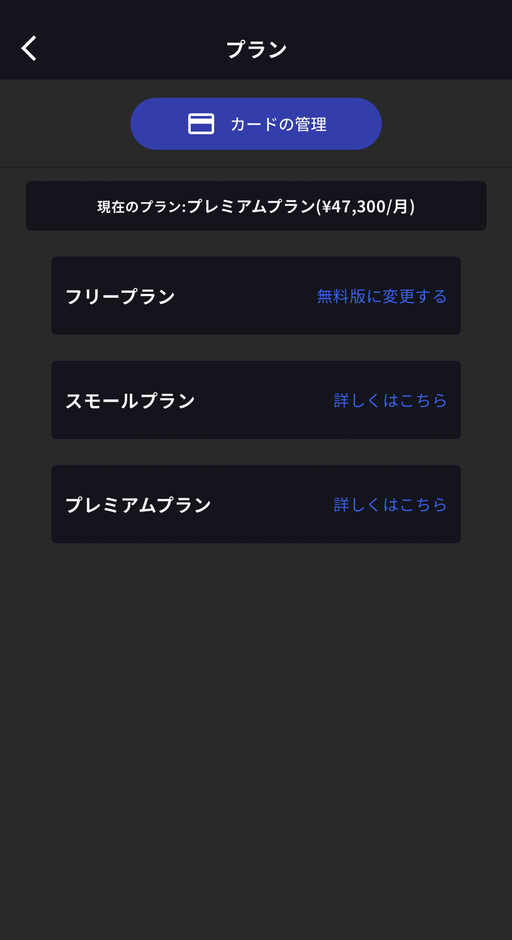
- Tap “Change Subscription Plan”
- Tap “Learn More” for the plan you want to change to
- Tap “Change Subscription Plan” and complete after reviewing payment information

3. Electronic Contract (Written Contract) Customers
Apply via Contact Form
If you wish to change plans, please contact us via this form with the following information:Information required for plan change
- Company name
- Company address
- Company phone number
- Contact person name
- Contract date
- Current plan type & desired plan
Cancellation / Trial End: In-App Payment Customers
1. PC
- Log in to VoicePing from browser
- Click the user icon
- Click “Show Admin Dashboard”
- From the “Payment Information” section, switch to “Free Plan”:
- Click “Change Plan”
- Click “Change to Free Version” under Free Plan
- Enter cancellation reason
- Complete plan cancellation
- Confirm cancellation message on “Payment Information” screen


2. Mobile
- Open and log in to VoicePing mobile app
- Tap the three-line icon at the top left
- Tap “Change Subscription Plan”
- Tap “Change to Free Version” under Free Plan
- Tap “Change to Free Version”
- Select cancellation reasons (multiple selection allowed) to enable the “Cancel” button
- Tap “Cancel”
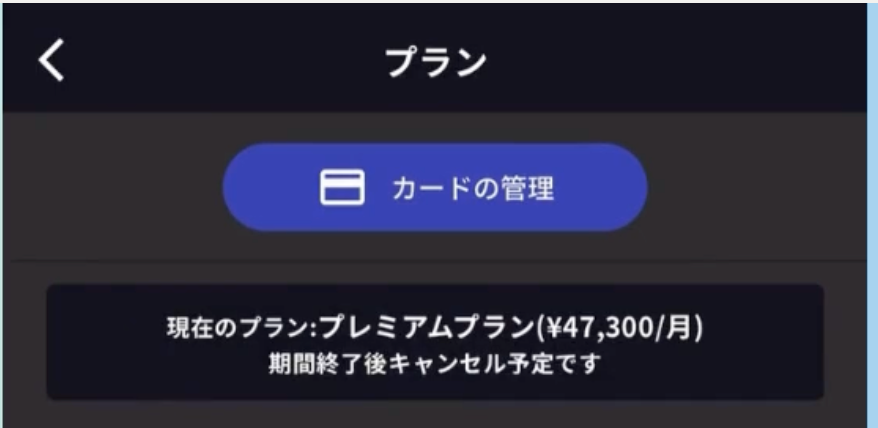
- Confirm cancellation message on “Plan” screen
Cancellation / Trial End: Non In-App Payment Customers
Apply via Contact Form
If you have contracted through methods other than in-app payment (such as electronic contracts), you cannot access the “Payment Information” section on the log page. If you wish to cancel, please contact us via this form with the following information:Information required for cancellation
- Company name
- Company address
- Company phone number
- Contact person name
- Contract date
- Contract plan type
- Cancellation reason