How to Use
- Launch the VoicePing app.
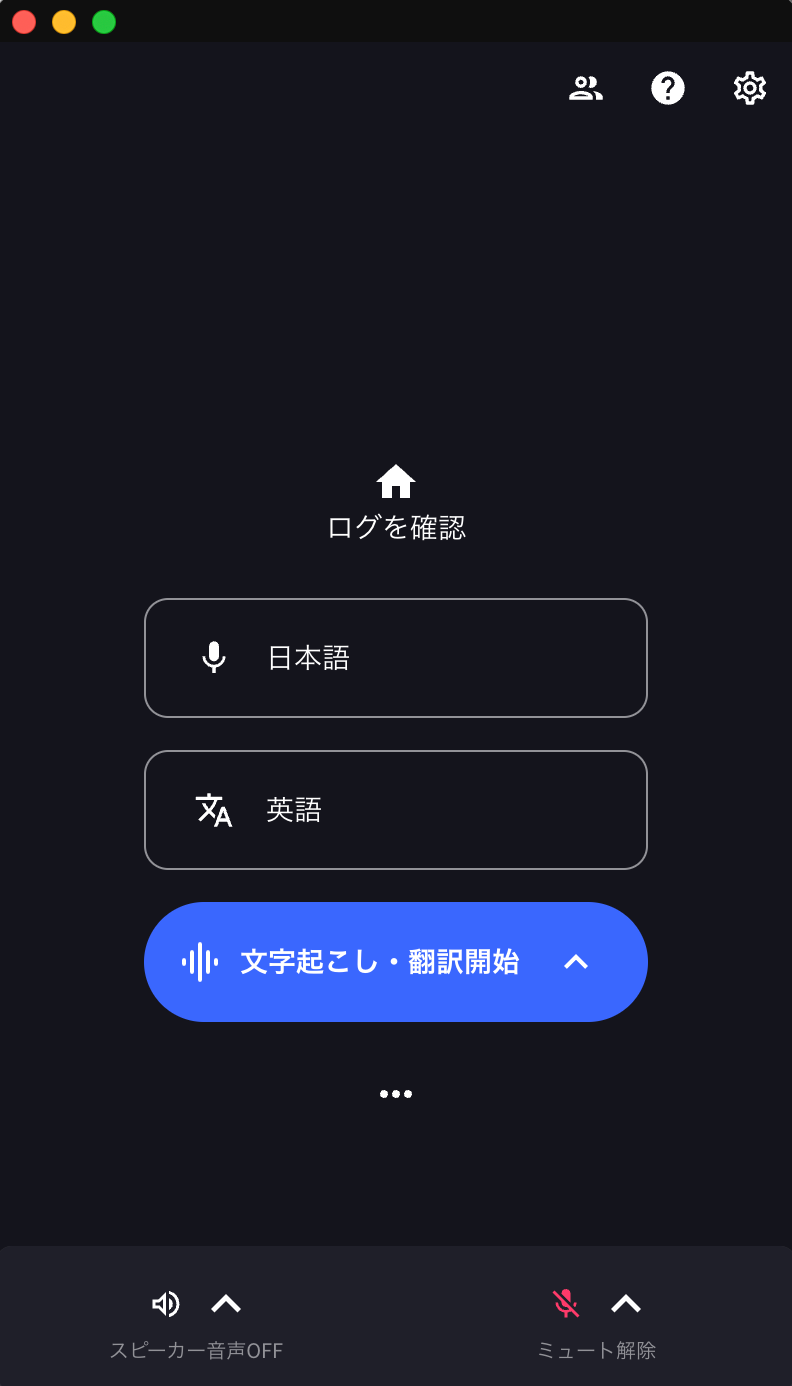
- Specify translation languages.
- Microphone icon: Transcription language
- “Text & A” icon: Translation language
Example: To translate English to Japanese → Microphone icon: English, “Text & A” icon: Japanese
- Press the “Start Transcription/Translation” button to begin translation
- Check the translation
- Press the “Stop” button to end translation, and save the content by adding a title and tags to the meeting minutes
How to Share Translation Channel with Guests
Recommended scenario 1: When VoicePing app users want to share real-time translation with external people and have them view it on their own devices. (Up to step 3)Recommended scenario 2: When VoicePing app users want to communicate with external people in their respective native languages (Up to step 5)
In the case of recommended scenario 2, if the physical distance to the guest is too close, the guest’s speech may also be input into the VoicePing user’s microphone. To prevent this, mute the VoicePing app microphone when not speaking.
-
Click the “Share” button
-
Issue a translation channel for guests and share it with them
-
When guests join, their names will appear in the participant list. You can also check the number of participants from the “Share” icon.
- “Remove” is a function to remove participants from the translation channel.
-
If you want to communicate with guests in your respective native languages, set both the VoicePing app microphone icon and “Text & A” icon to your native language.
-
Unmute the microphone below when speaking.
FAQ: What settings should guests use?
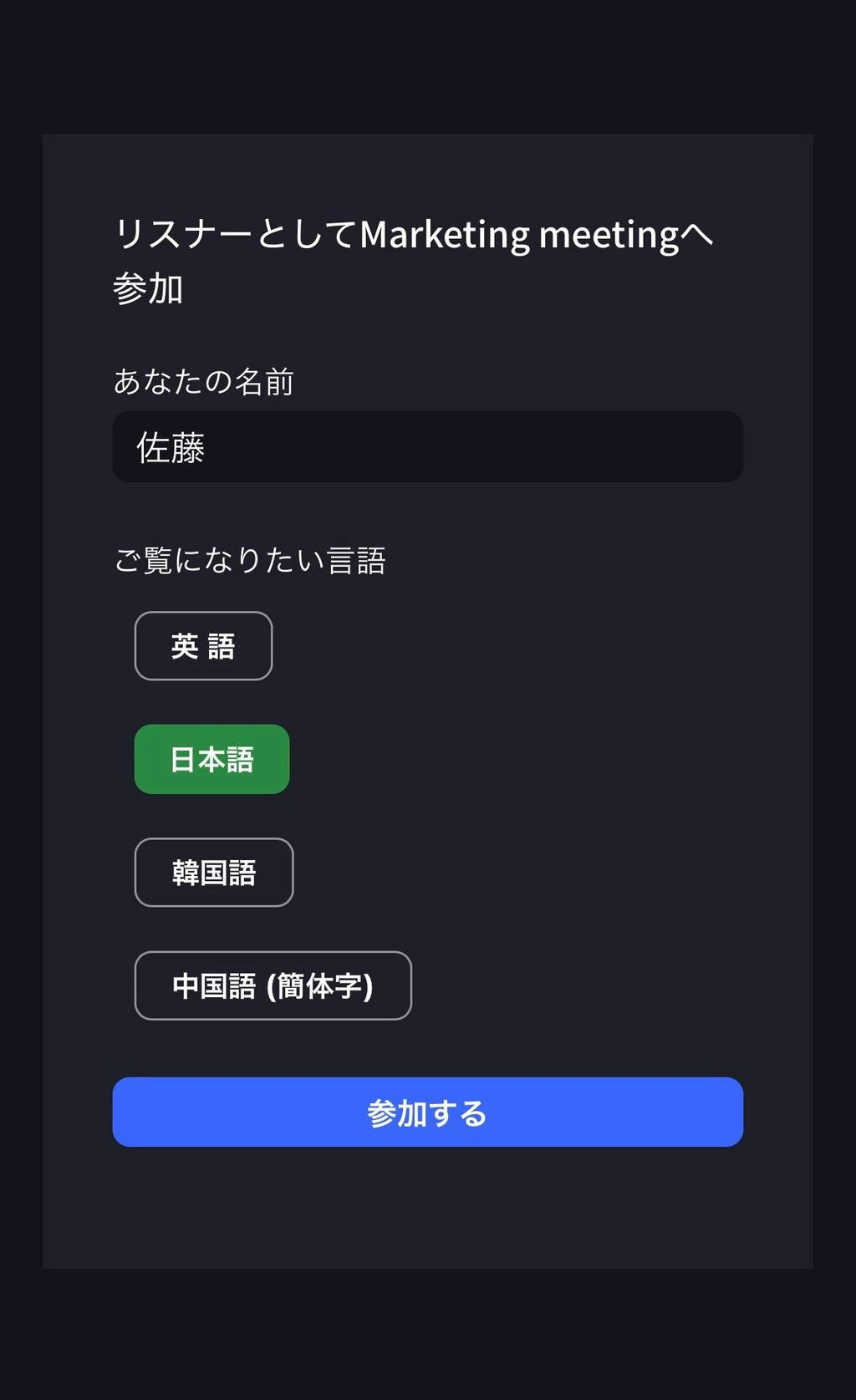
- When guests access the translation channel from the URL or QR code, the following screen will be displayed:
- Name: Guest enters their name.
- Language you want to view: Select the translation language the guest wants.
-
Enter from “Join”.
-
Once entered, the following operations are available:
- Change language
- Adjust translation appearance in “Settings”
- Adjust reading speed
- Turn reading function on/off
- Leave
If you have any questions, please contact us via
this form.
## Official Links