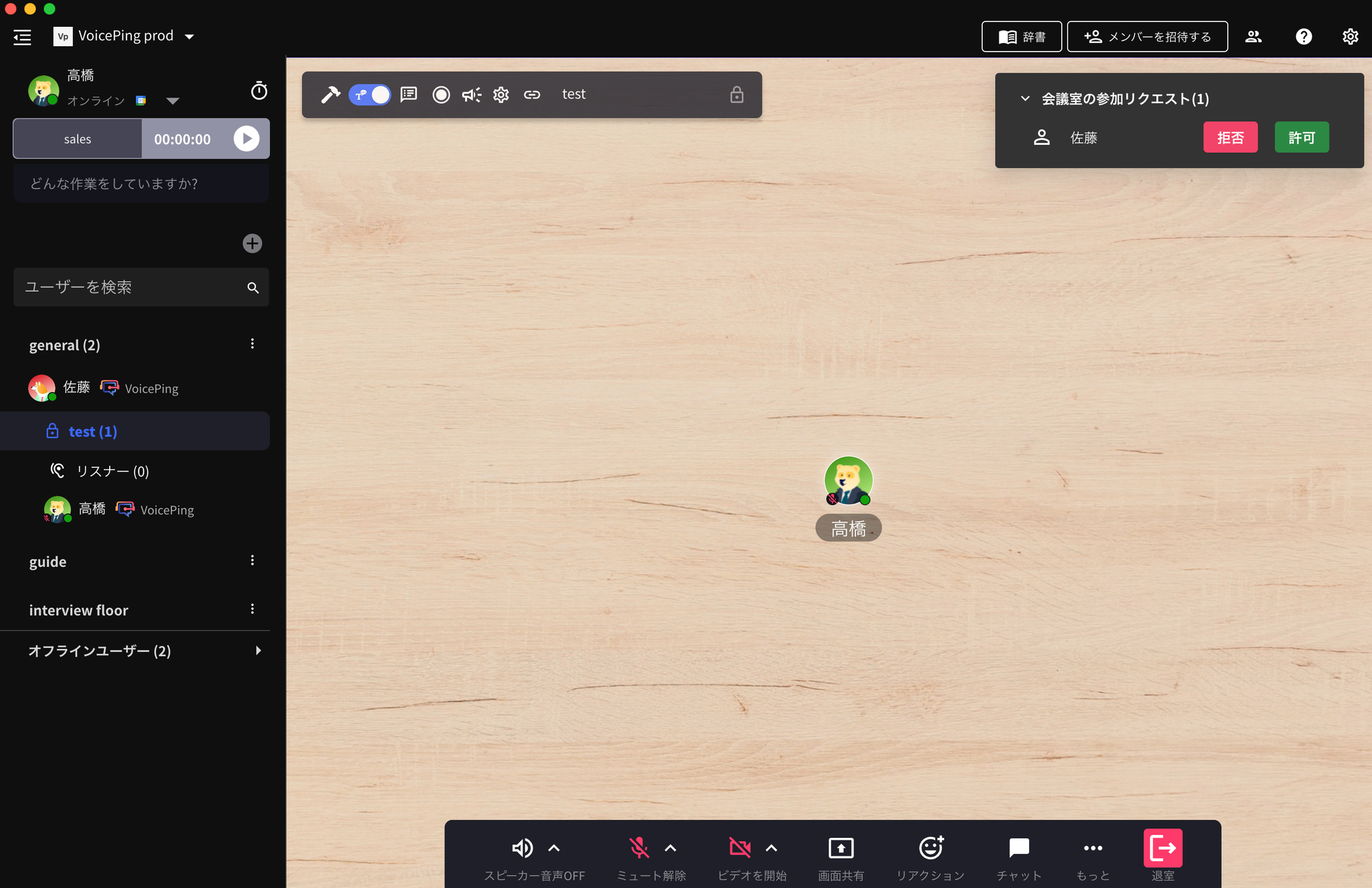
VoicePing meeting rooms are spaces for meetings and collaborative work with members, similar to a real office.
1. Create a New Meeting Room
Steps
- Click “New Meeting”
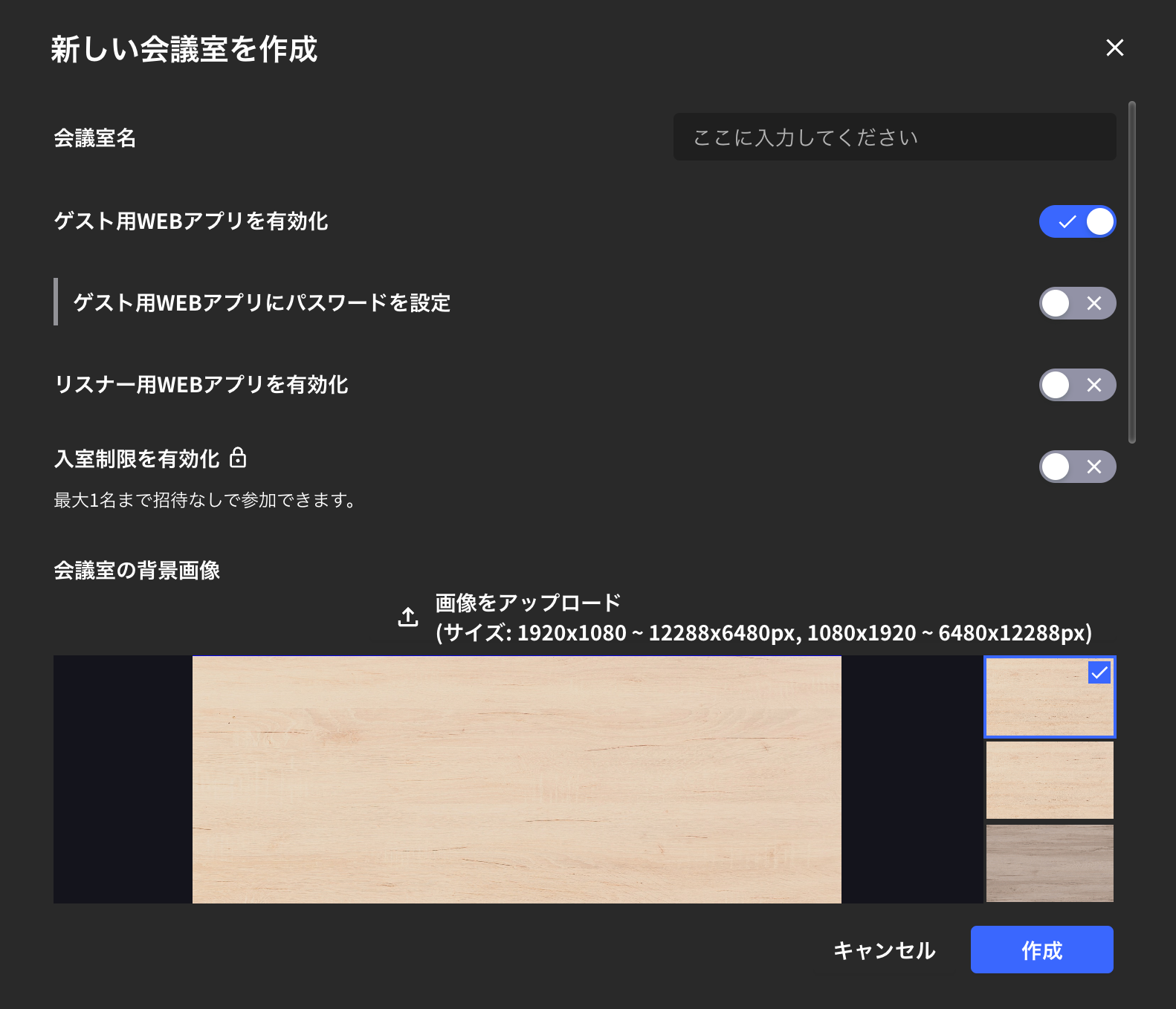
- Enter meeting room name and click “Create”
- Enter the meeting room from the name bar on the left
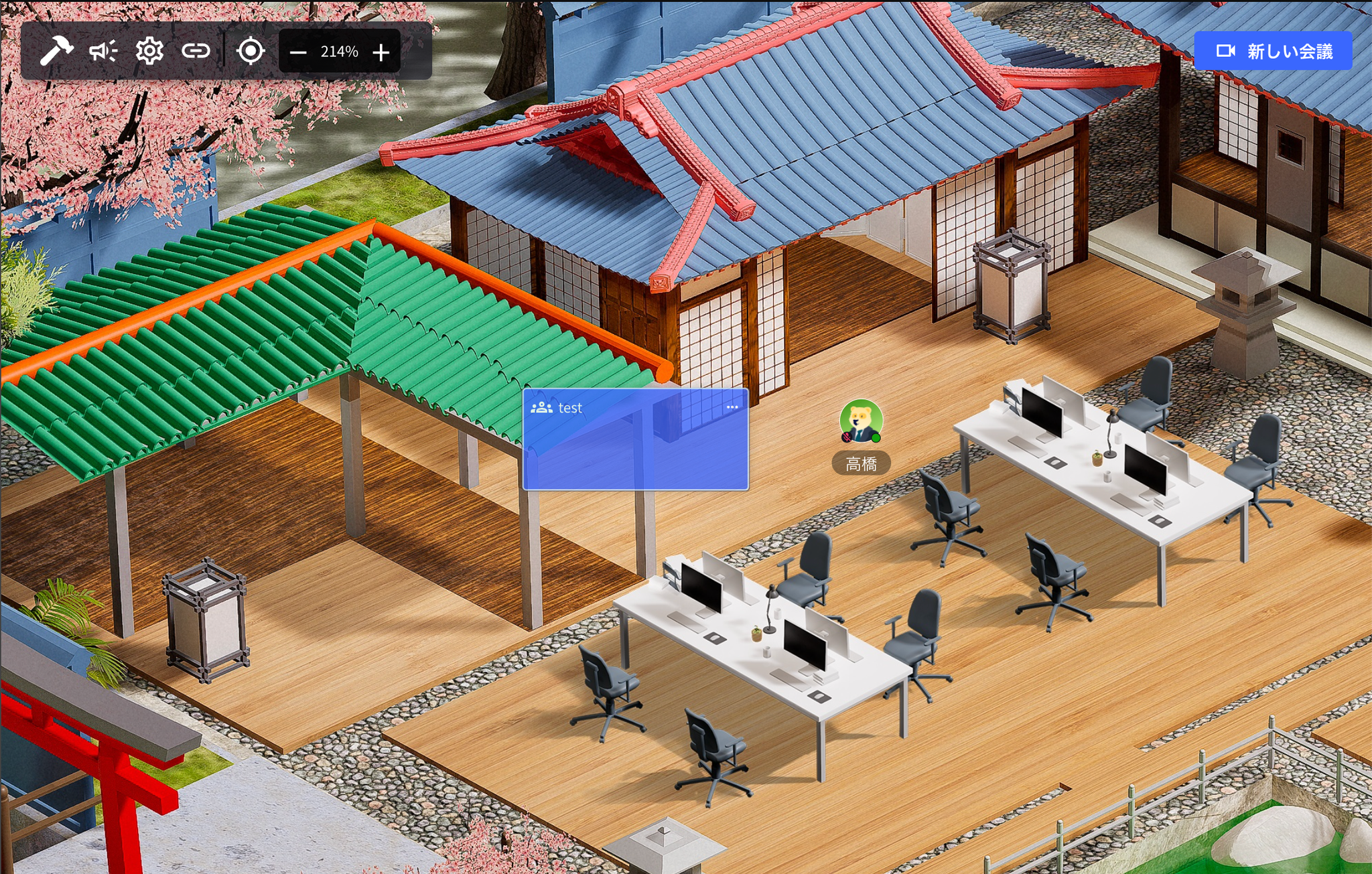
When you create a new meeting, a meeting card (blue square) is created on the floor. You can also enter the meeting room by clicking the meeting card.
2. Meeting Room Settings
This explains settings when creating a new meeting room & detailed settings for existing meeting rooms.
How to Check Existing Meeting Room Settings
- From inside the meeting room
- From the name bar
- From the meeting card
Enable Guest Web App
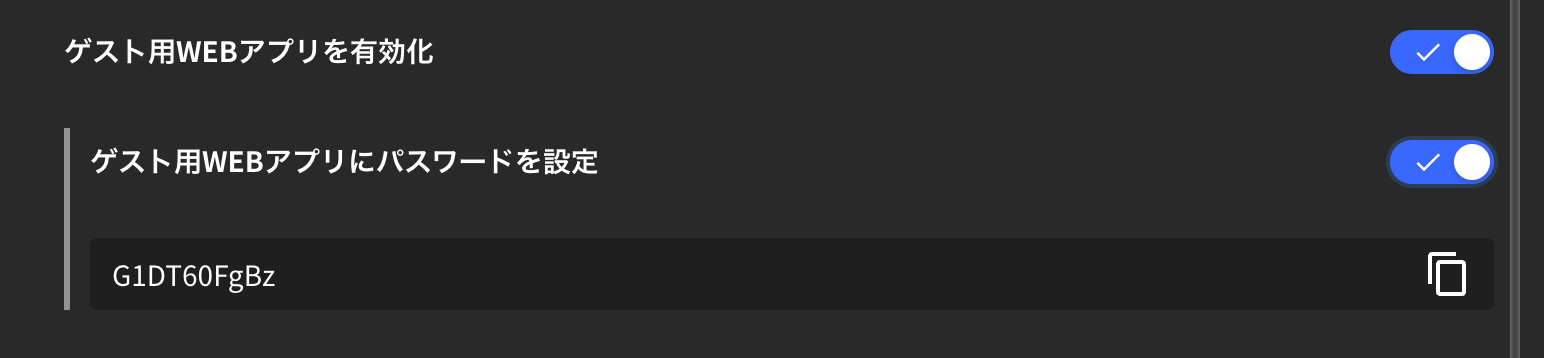
- When you “Enable guest web app”, people who haven’t installed the VoicePing app can access the meeting room from their browser.
- If you want to password-protect browser access to the meeting room, turn on “Password for guest web app”.
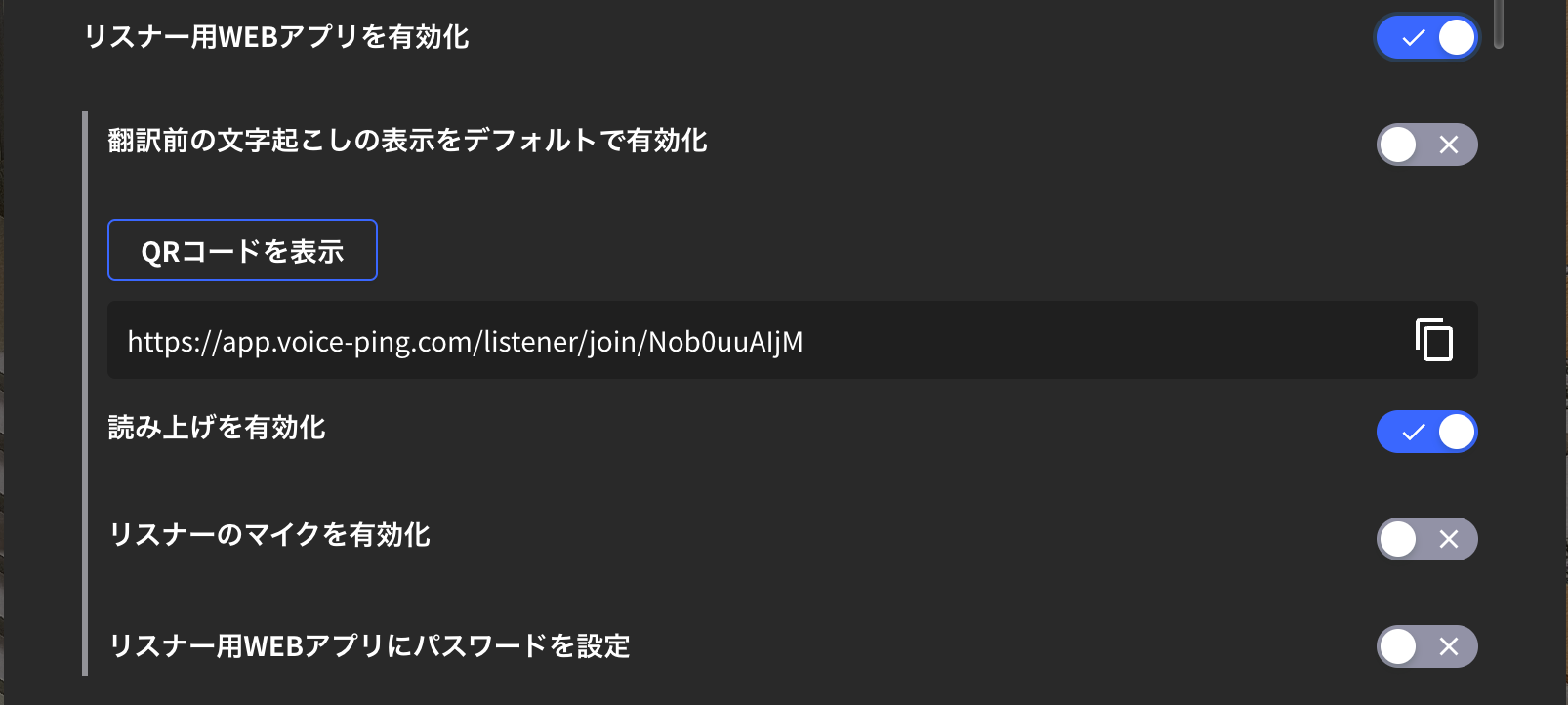
Enable Listener Web App
This setting issues a link to share the meeting room’s transcription and translation pages with external guests.
Set as Private Meeting Room
When this setting is turned on, it becomes a private meeting room and you can join the meeting room via participation request.
Recurring Meetings
By making the above settings, you can automatically call designated members when it’s time for a recurring meeting.
Enable Transcription Function
When transcription function is turned off, meeting transcription will not occur.
Auto-Delete Data When User Is Absent
Meeting room data (objects and chat messages) will be automatically deleted after the meeting ends (when user is absent).
Notice Regarding Data Retention Period
[Audio Data]
For all users of Small and Premium plans, from the perspective of data security and efficient storage management, the retention period for audio data will be up to 3 months, and data that has passed the retention period will be completely deleted without prior notice.[Recording Video Data]
Recording video data that is more than 1 month old will be deleted without prior notice. If you want to keep it for more than 1 month, please download it in advance.
If you have any questions, please contact us via
this form.
## Official Links