Create New Workspace (Member Registration)
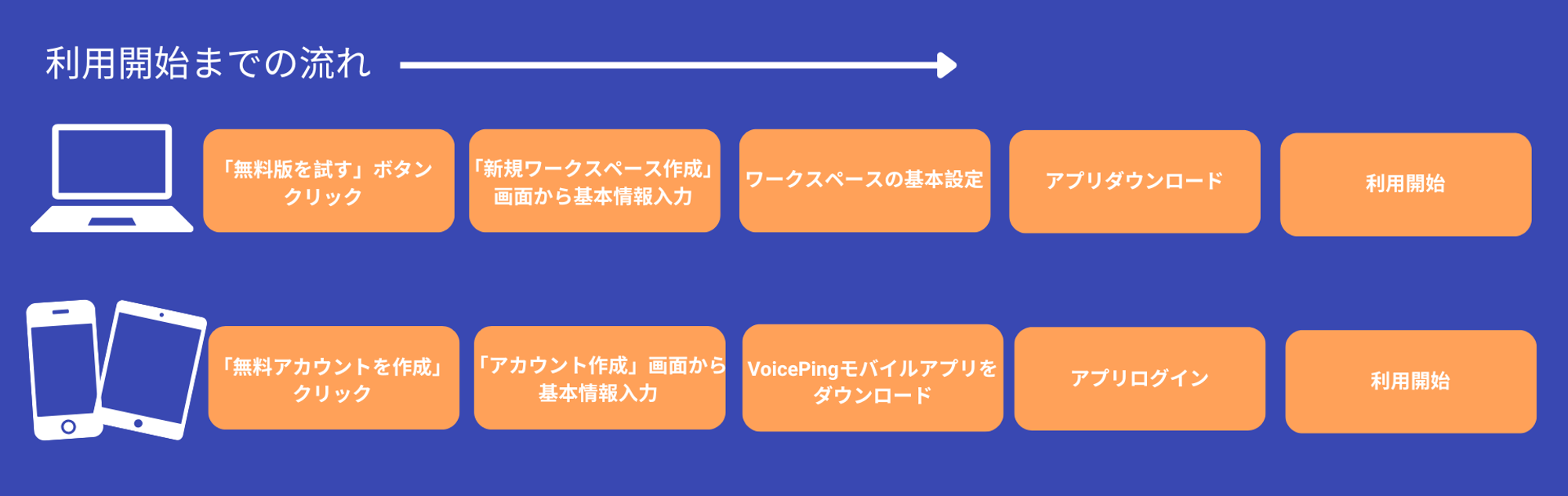
🖥️ For PC
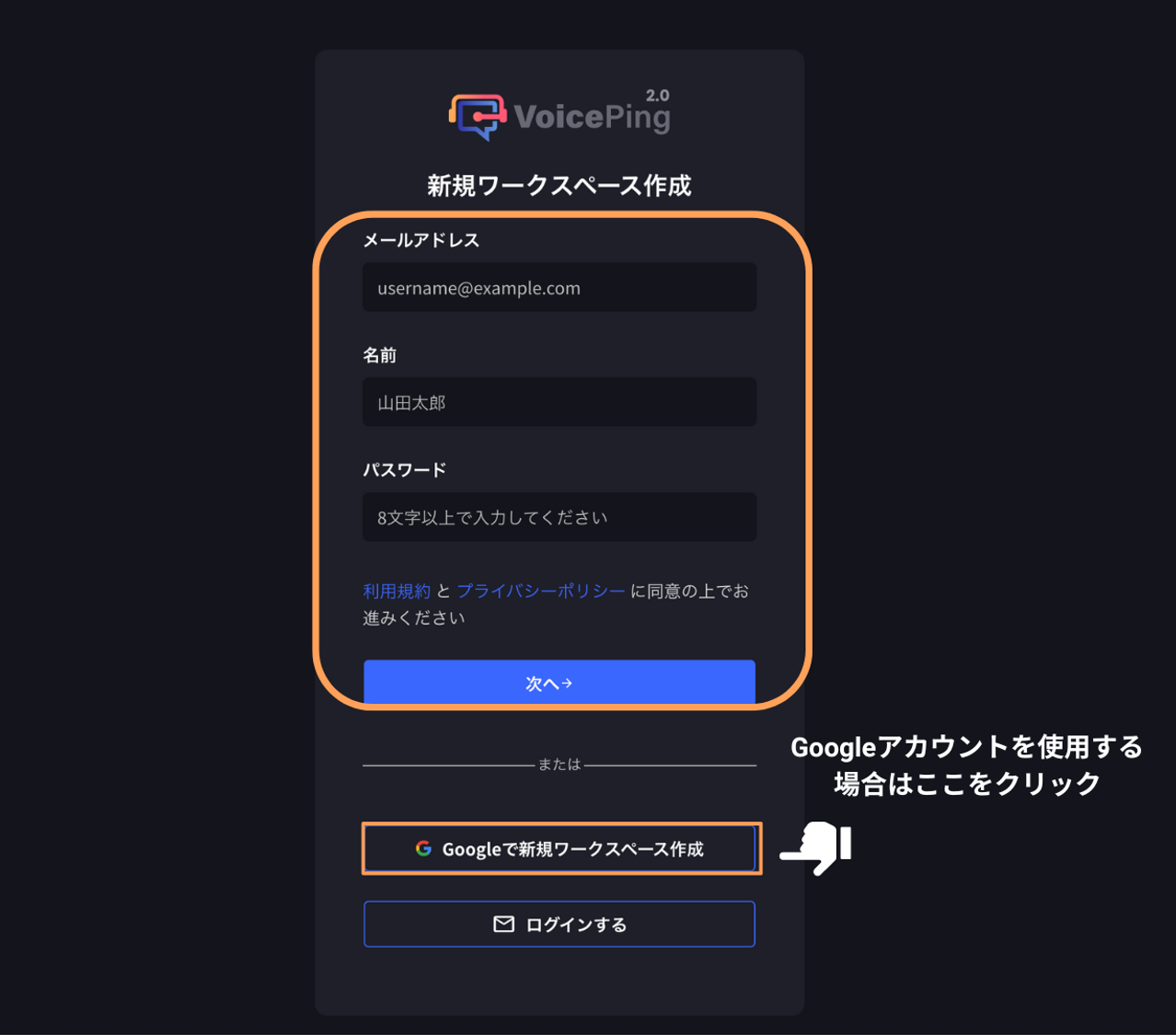
🟡Steps🟡- Go to the signup page. You will see the “Create New Workspace” screen.
-
Enter your email address, name, and password, then click “Next→”.
- To register with a Google account, click the “Create New Workspace with Google” button and log in.
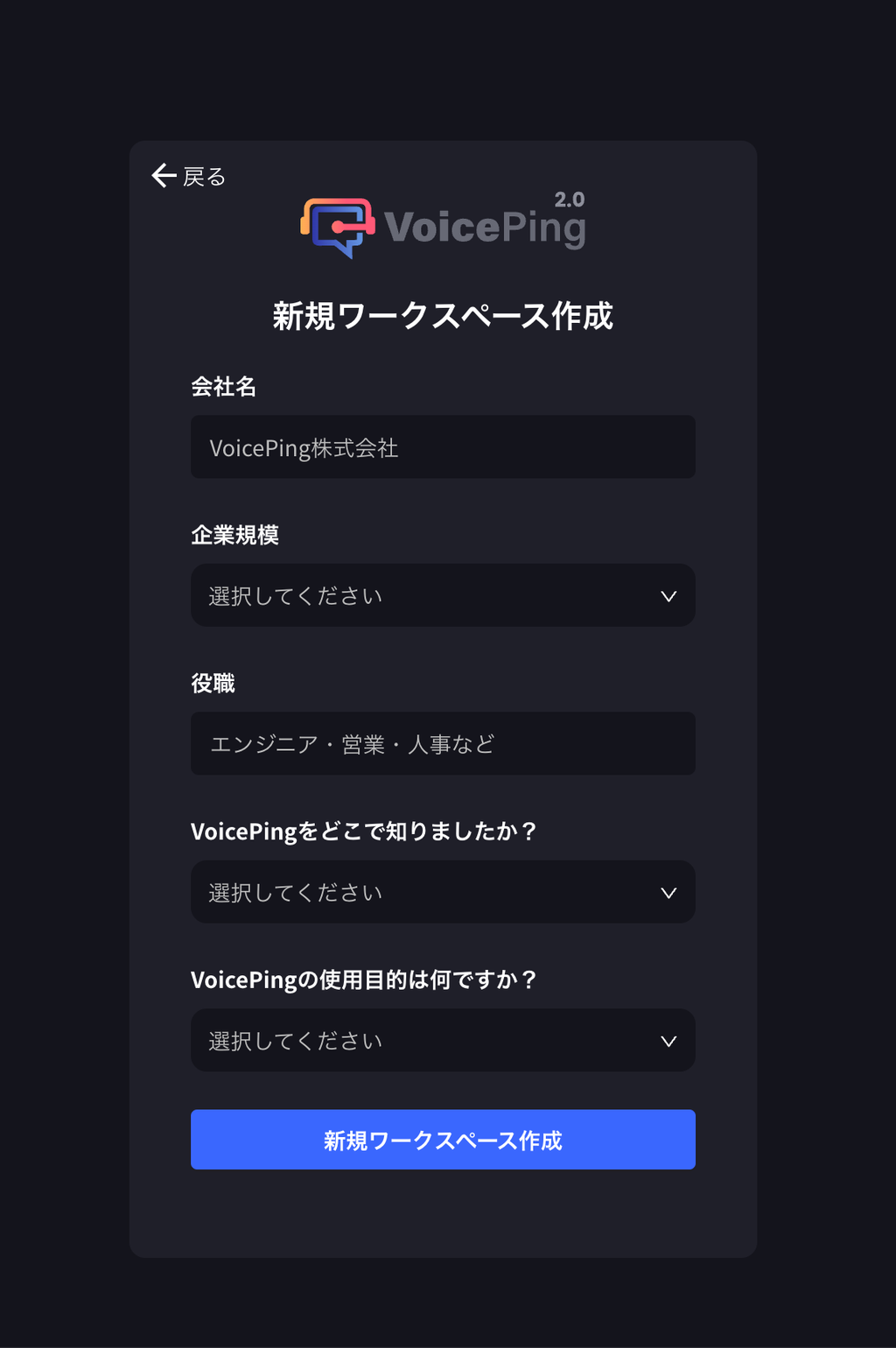
- Enter company name, company size, and job title, answer two questions, and click “Create New Workspace”.
- Enter the verification code sent to your registered email address.

- Basic Workspace Settings
- Enter workspace name
- Enable or disable the web app

Turn on the switch if you want users to be able to use the web app. This option can be changed later in [Dashboard] -> [Member Management] section.
If you want to use VoicePing from a browser without launching the app, press the “Join from Web” button.
- Select the language options you want to use (up to 4 possible)
- Click “Create Workspace”
- The download will start automatically. If the download does not start, click the download button.
📱 For Mobile & Tablet
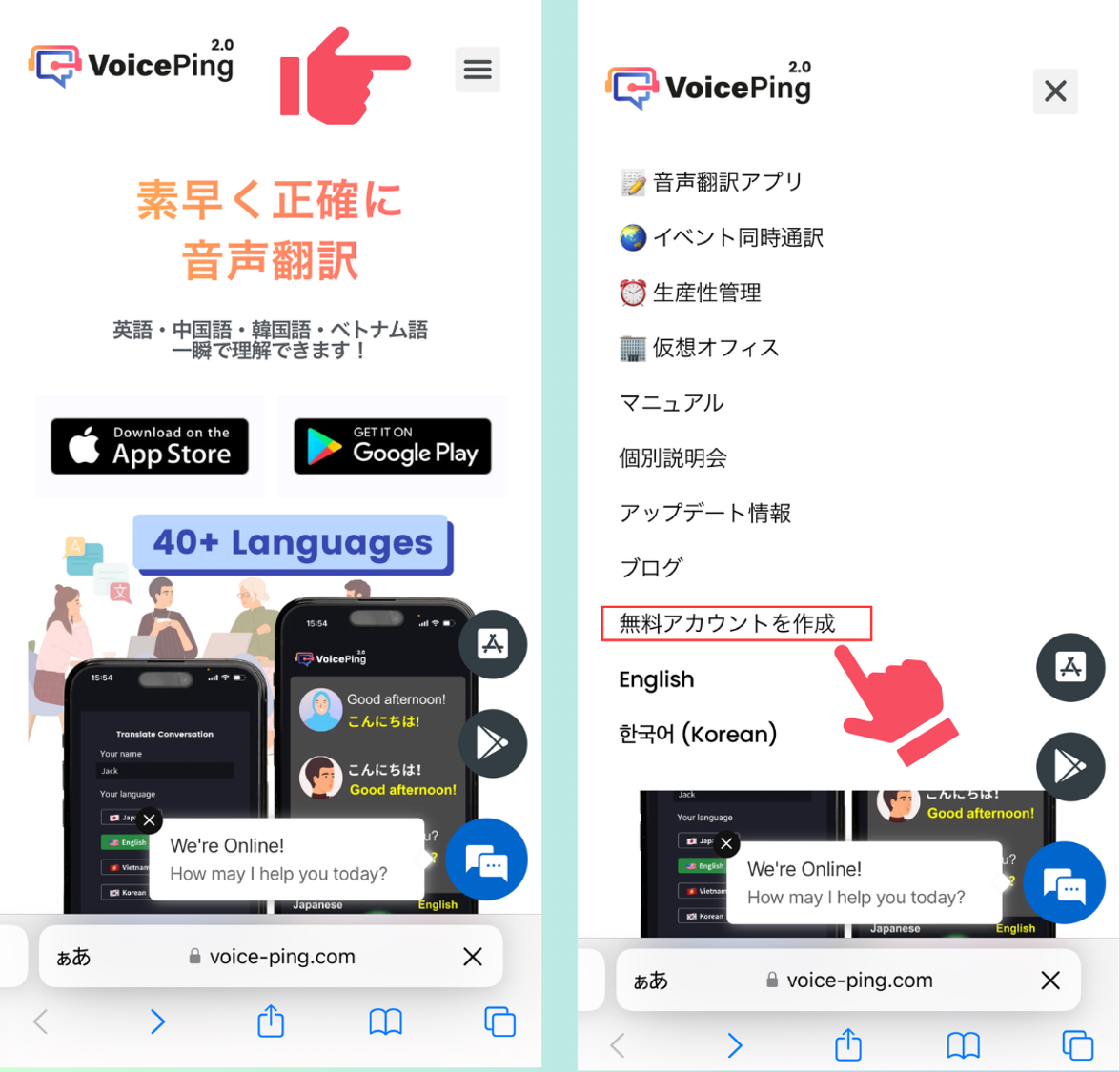
- Click the three horizontal lines in the upper right corner of the top page, and click “Create Free Account” from the displayed menu.
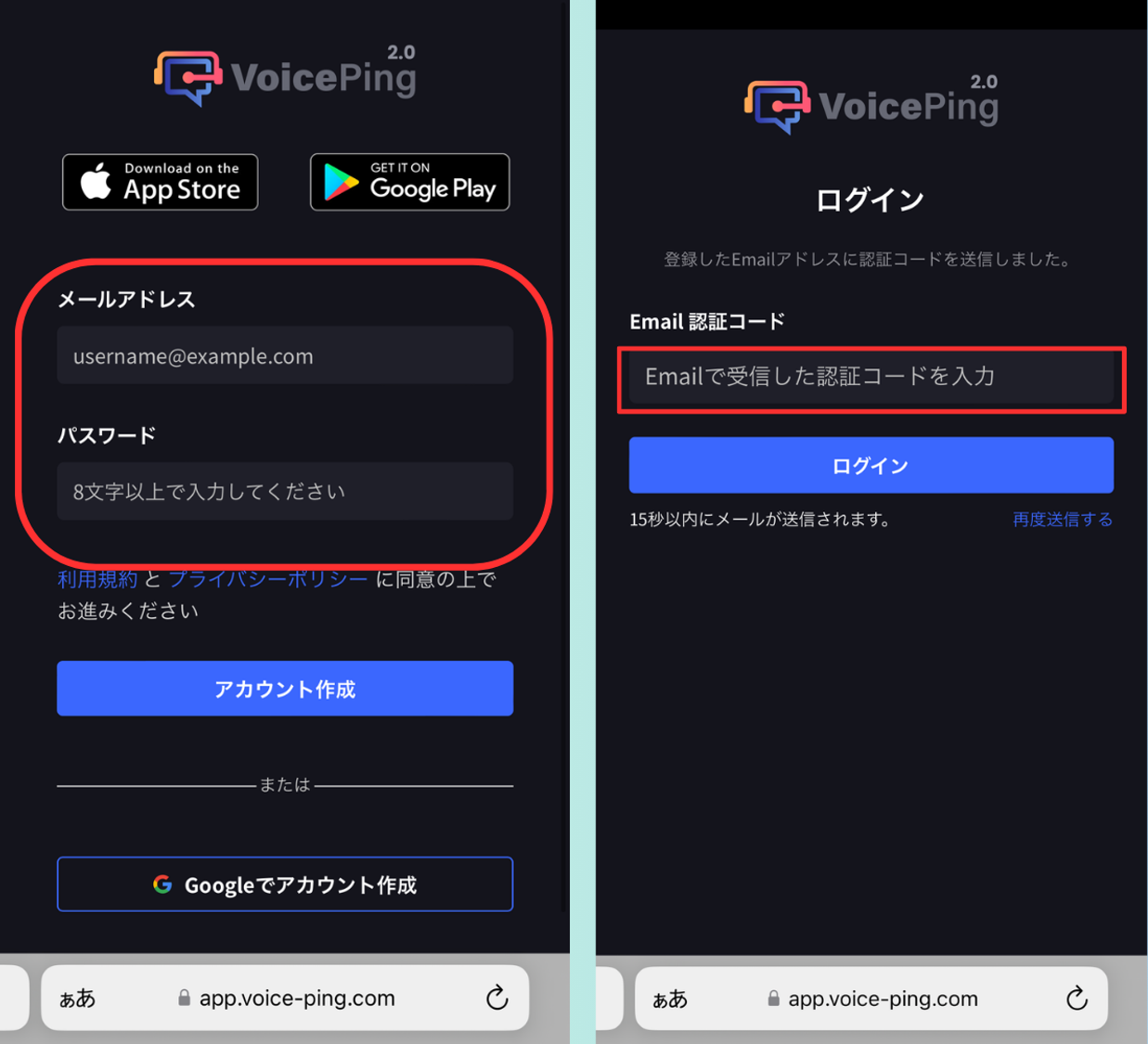
- Enter your email address and password, then click “Create Account”. Next, enter the verification code sent to your registered email address. (To register with a Google account, click “Create Account with Google”)
- After account creation is complete, press the icon button to download the VoicePing mobile app.

- Open the app and log in to complete.
Floor settings can be changed from the desktop app
App Download and Installation
App Download
If you completed member registration on PC, the app will be downloaded automatically. Since the download is already complete, please proceed to app installation. If you registered from mobile and want to download the PC app, please visit the PC Download page to download.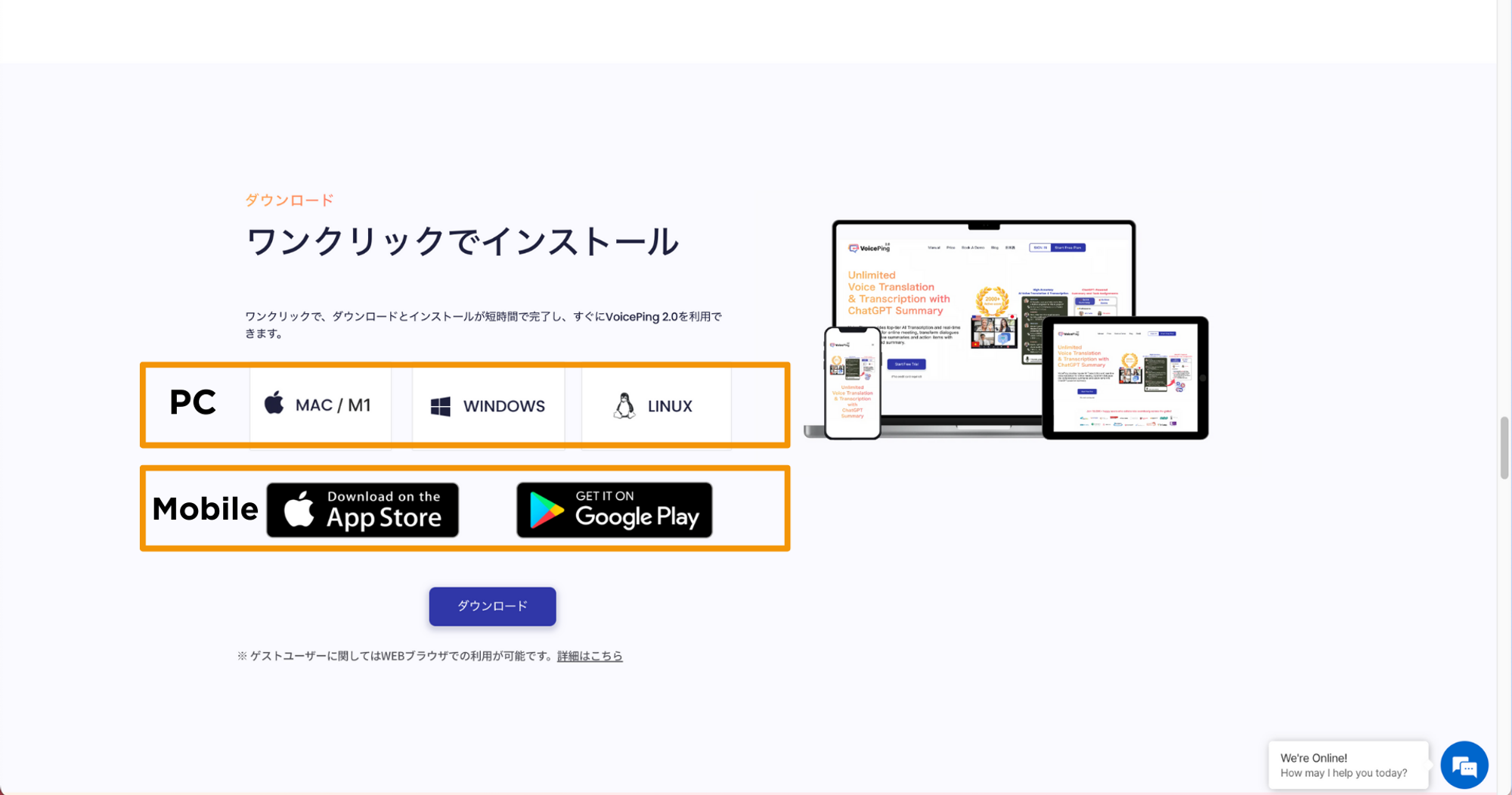
App Installation
For Windows OS
- Run the downloaded “voice-ping.exe” file. After installation, the app will launch.

For Mac OS
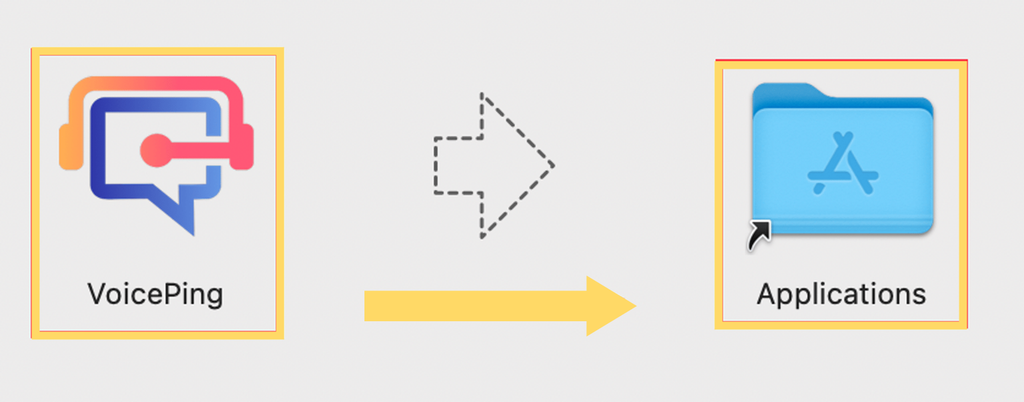
- Double-click the downloaded “voice-ping.dmg” file. A folder will open.

- As shown by the arrow in the figure, drag and drop the VoicePing app to the Applications folder.
- Click “VoicePing” from the Launchpad to launch the app.

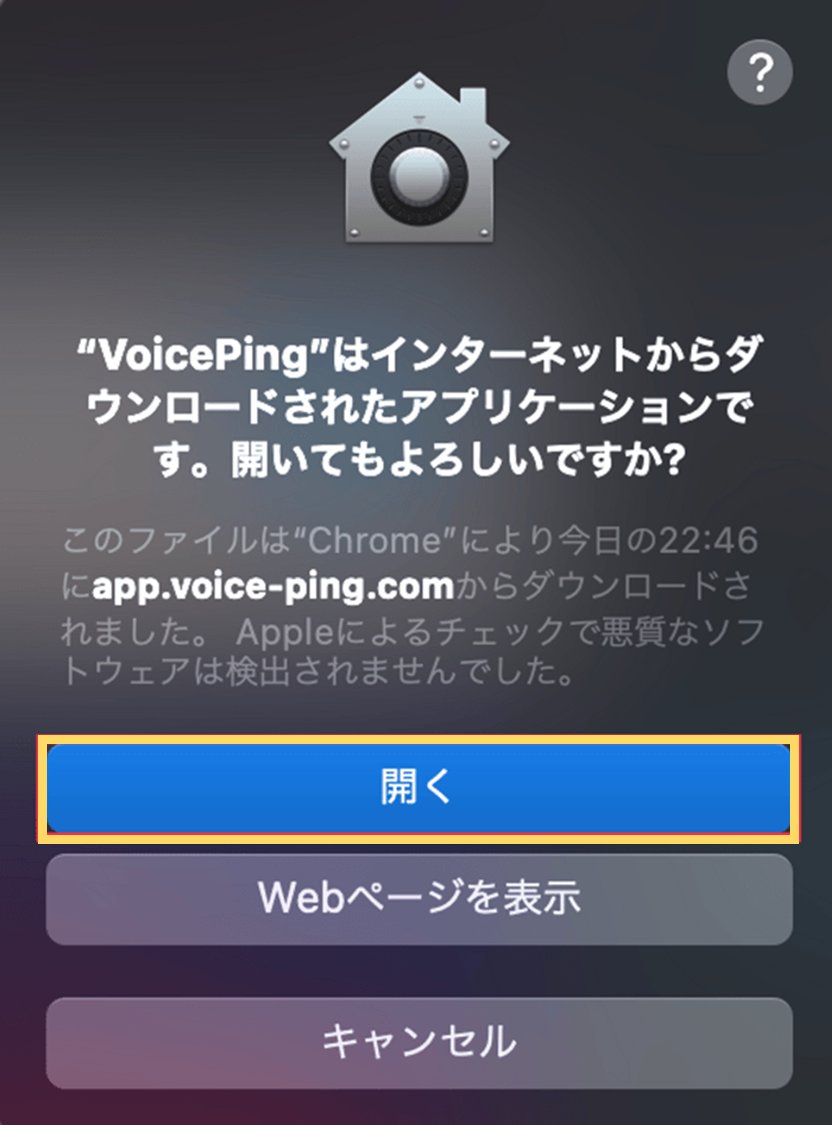
- If a popup appears asking “Are you sure you want to open it?”, click “Open”. The app will launch.