
Single Sign-On Feature
Enterprise plan clients can enable single sign-on (SSO) in their workspace, allowing users to log in to VoicePing using Microsoft Entra ID. This manual explains how to enable SSO in the workspace and how to configure Microsoft Entra ID as the IdP (Identity Provider).Prerequisites
Have a VoicePing Enterprise plan user account
Have a Microsoft Azure account
Registering Identity Provider
Microsoft Entra ID Configuration
1
Add VoicePing to Enterprise Applications
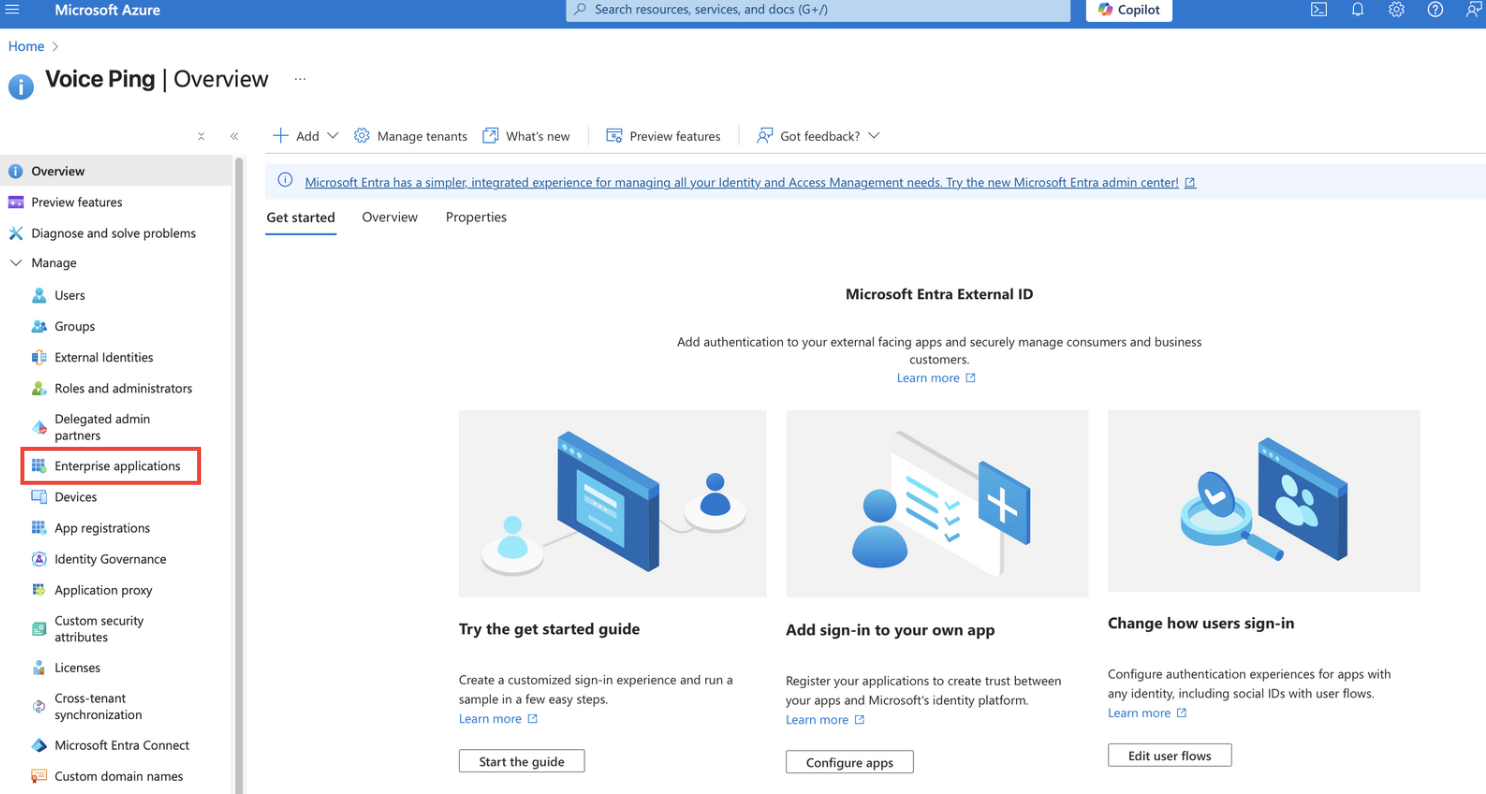
Open Microsoft Entra ID from the Azure portal and open the Enterprise Applications page.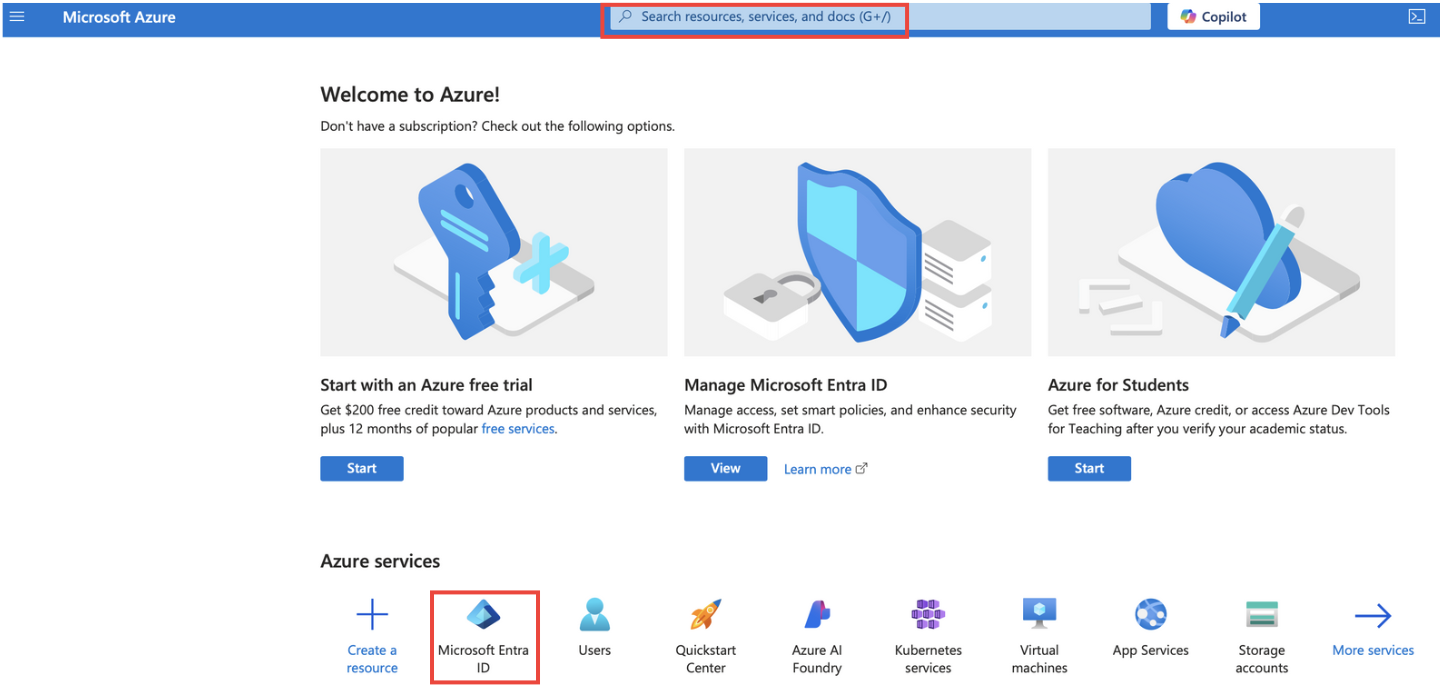
2
Configure SAML 2.0 Protocol
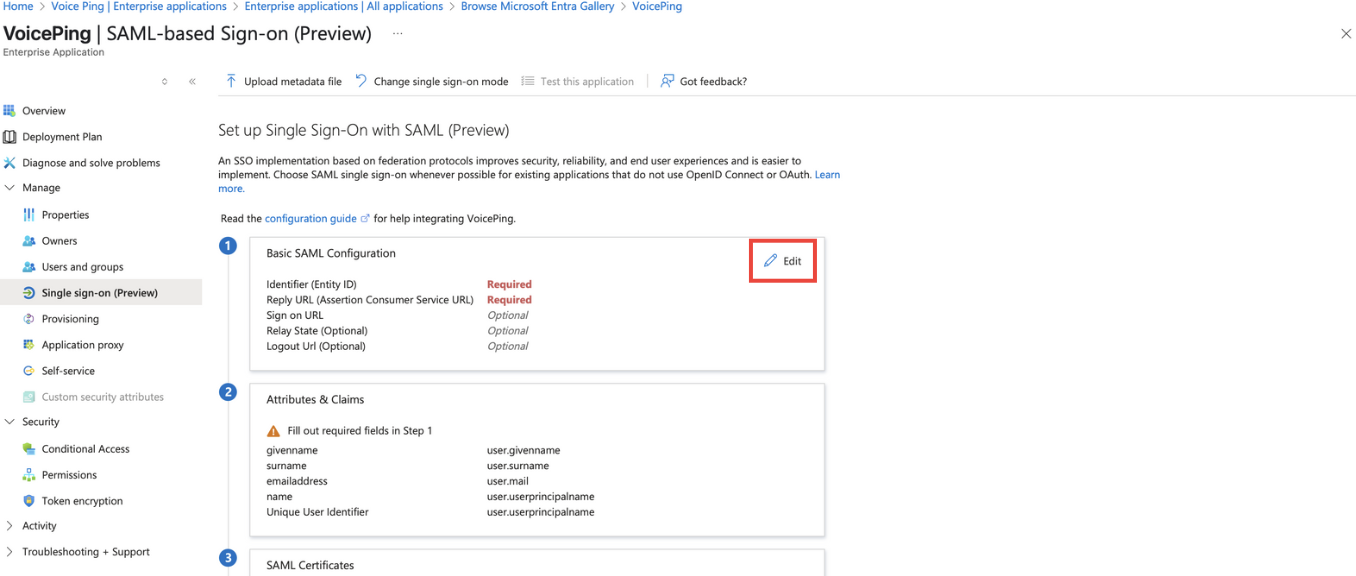
Configure the VoicePing application on the IdP to use the SAML 2.0 protocol for SSO.
3
Configure Service Provider (SP) Information
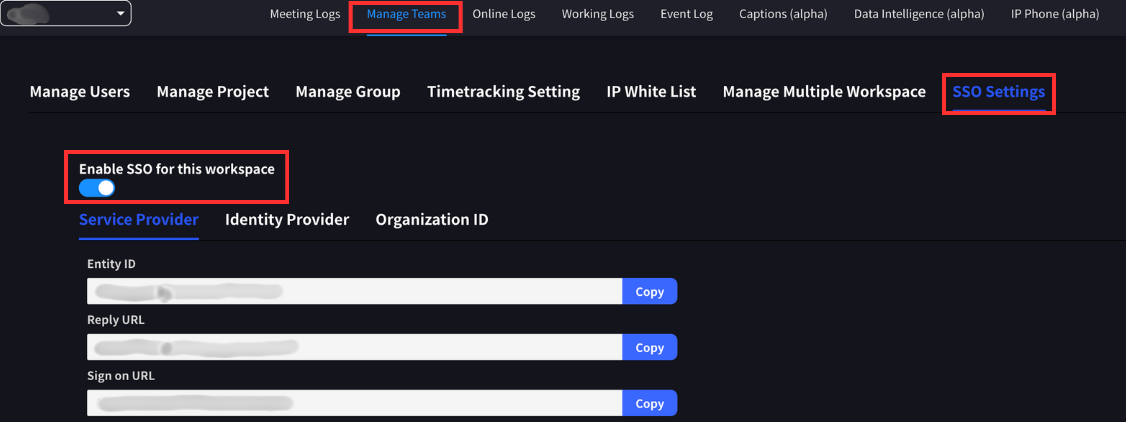
You can check the required fields in the “Team Management > SSO Settings” tab of the workspace management dashboard within the VoicePing application.
Only accessible to owners or managers of workspaces with SSO enabled.
| Item | Value |
|---|---|
| ACS URL | https://api.voiceping.io/api/v1/user/acs |
| Entity ID | voice-ping |
4
Include Email Address in SAML Claim
Include the user’s email address in the SAML claim. This is necessary for authentication within the VoicePing platform.This should be set by default in Microsoft Entra ID, but add it if not configured.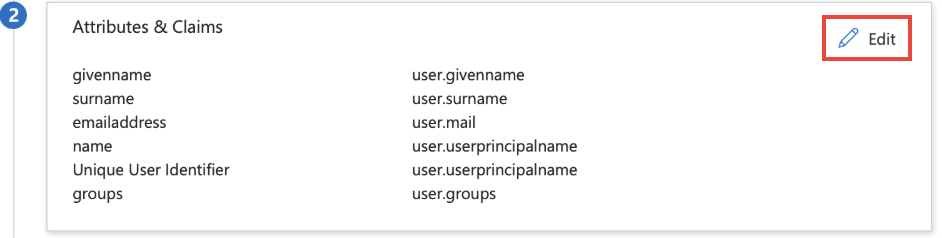
5
Add Users
Add users to the created VoicePing app.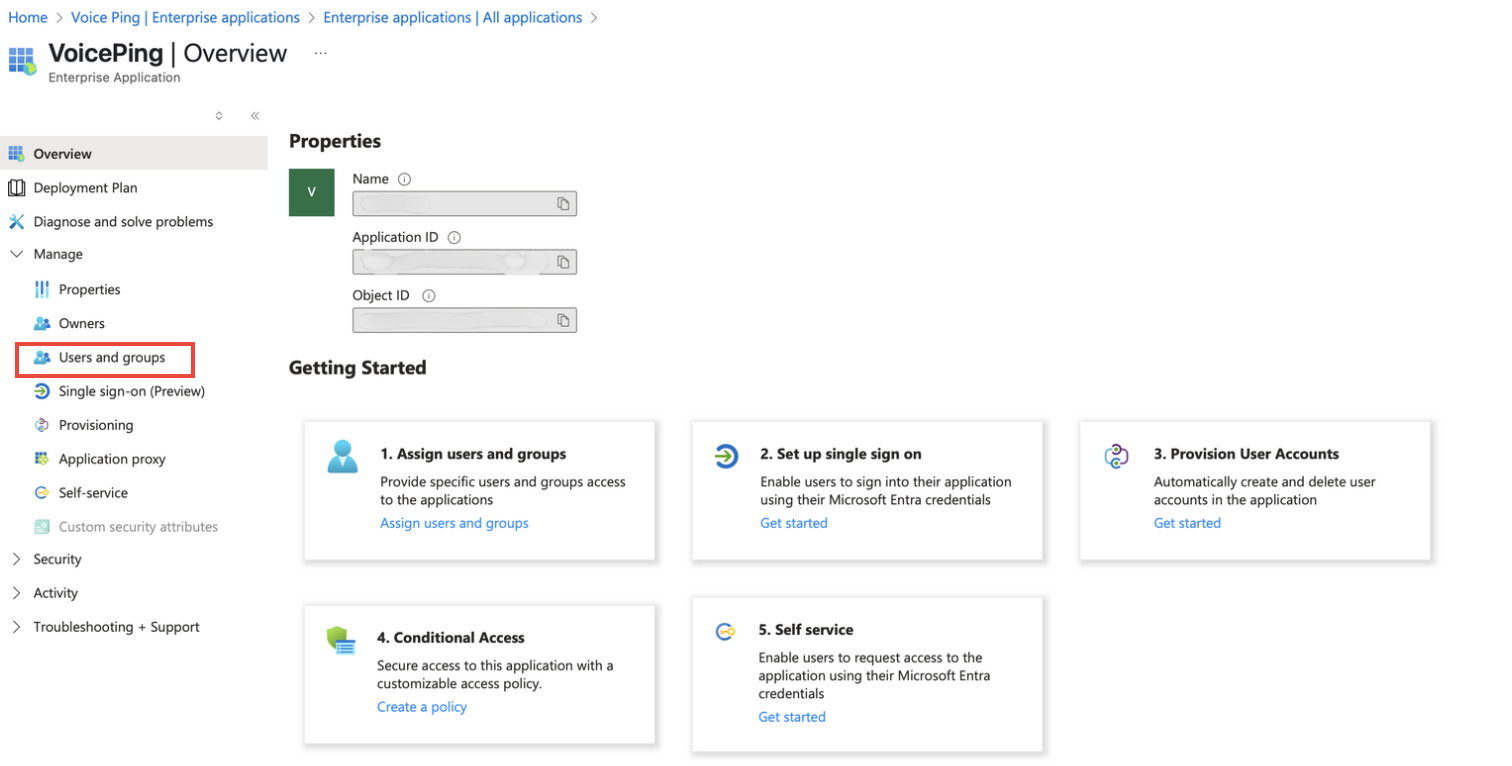
- Open the “Users and groups” page from the VoicePing app in Microsoft Entra ID
- Click “Add user/group”
- Select users or groups you want to grant access to
- Click “Select” and “Assign”
6
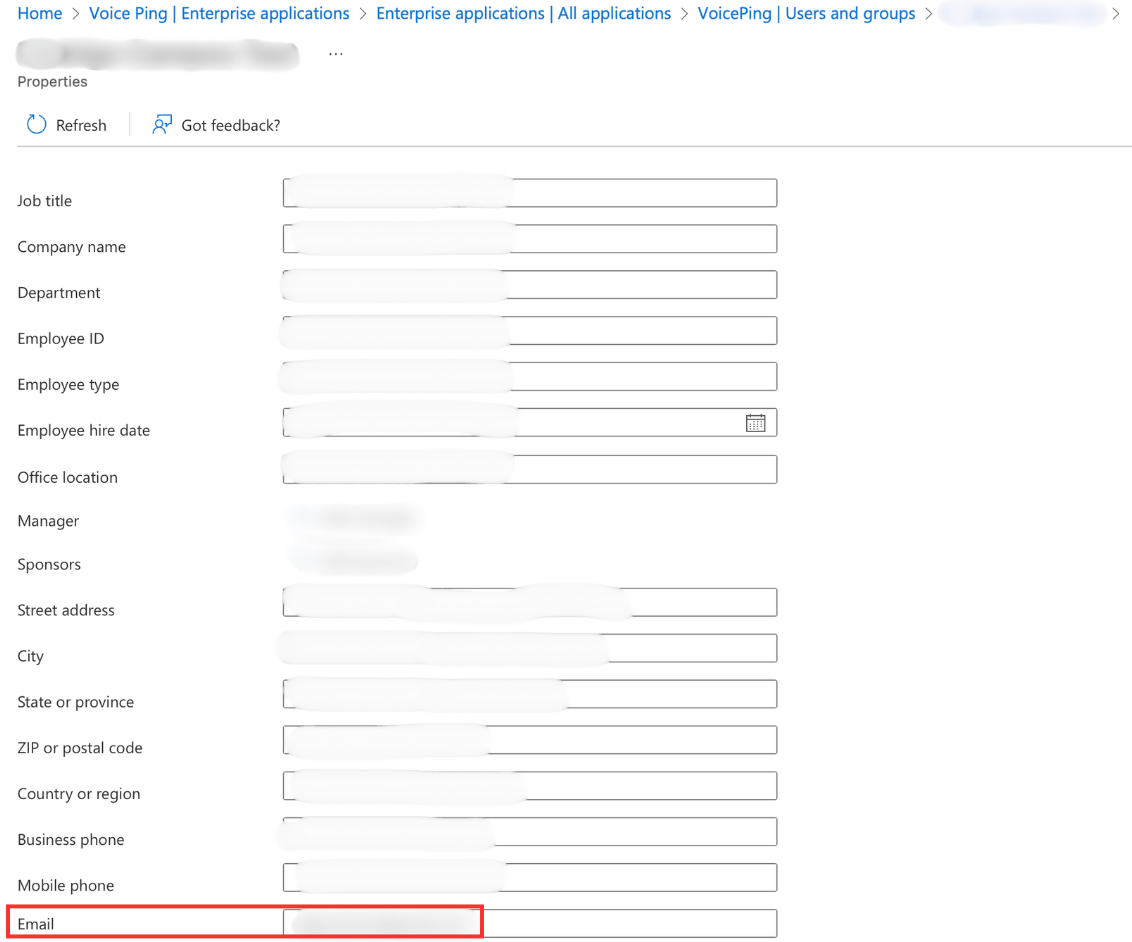
Verify Email Addresses
Ensure that added users have set up their email addresses in Microsoft Azure.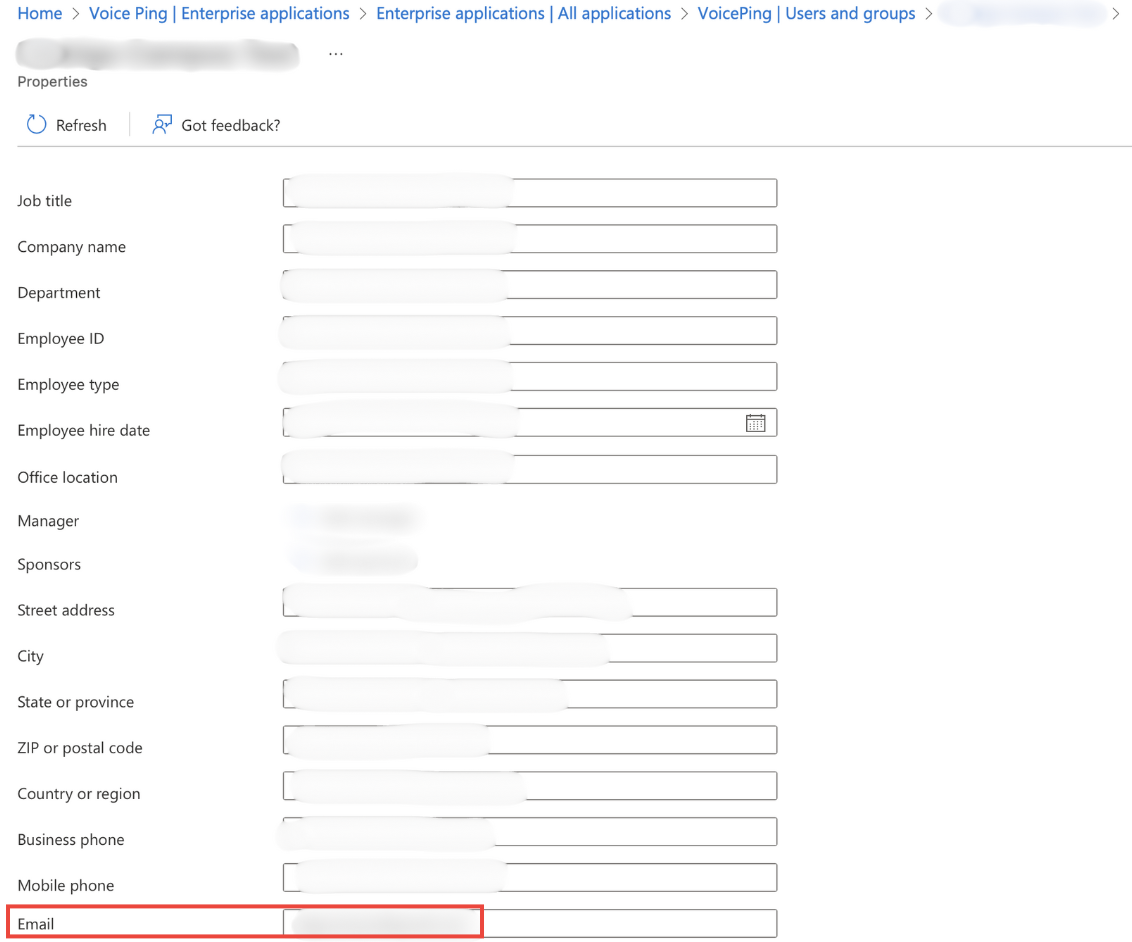
7
Download Metadata File
Download the metadata file from the IdP (Microsoft Entra ID). This file will be used later on the VoicePing side.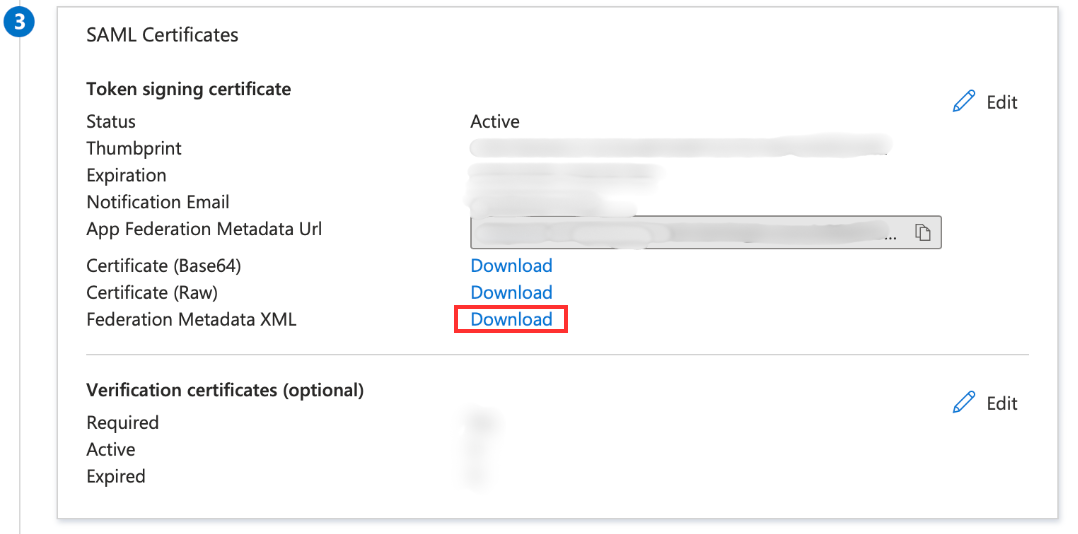
VoicePing Configuration
1
Enable SSO
Go to the workspace management dashboard, open the “Team Management > SSO Settings” tab, and enable SSO.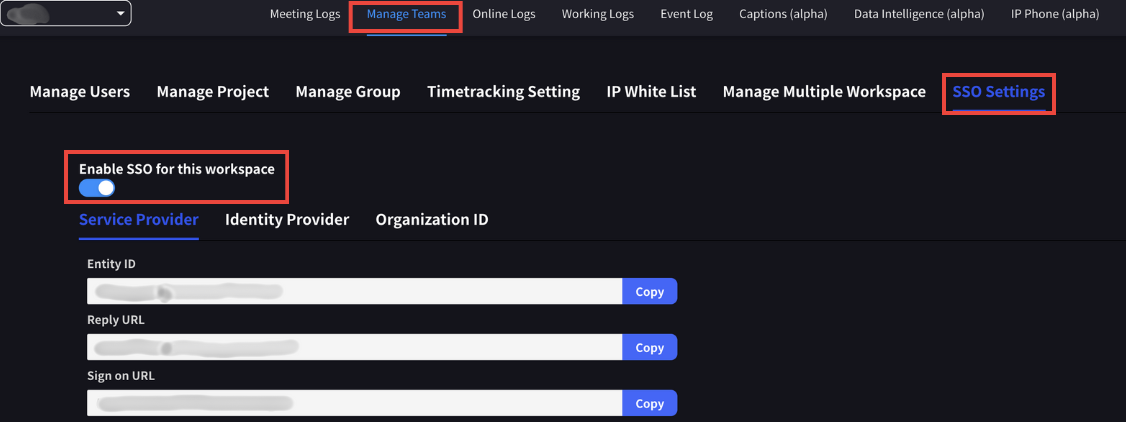
2
Upload IdP Metadata
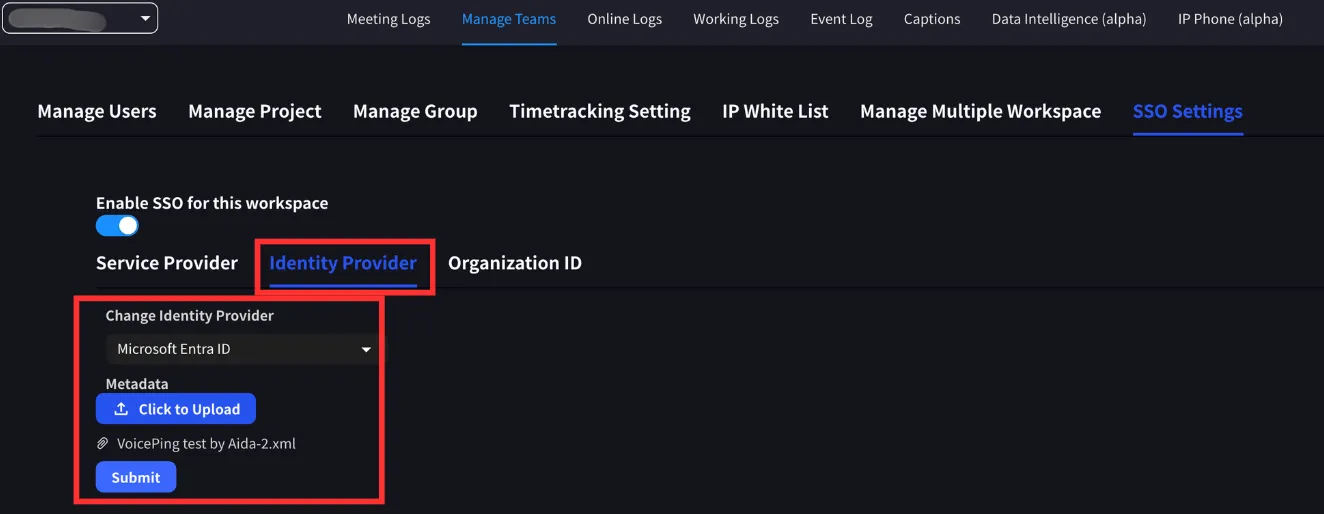
Switch to the Identity Provider tab. Select Microsoft Entra ID as the IdP, upload the IdP metadata file, and submit changes.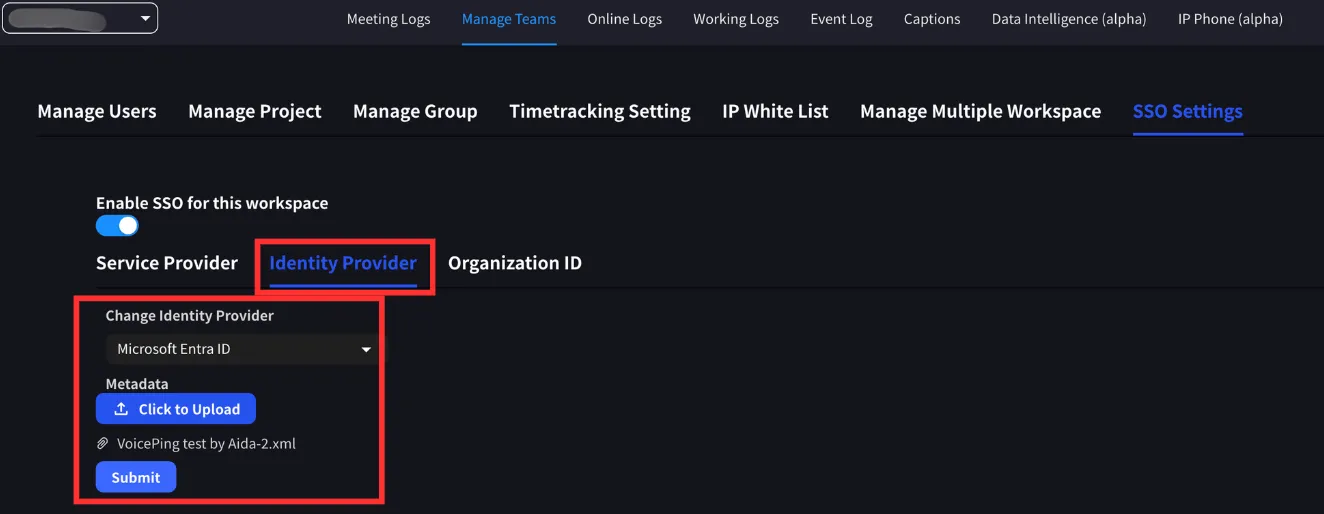
The metadata file can be obtained from Microsoft Entra ID.
3
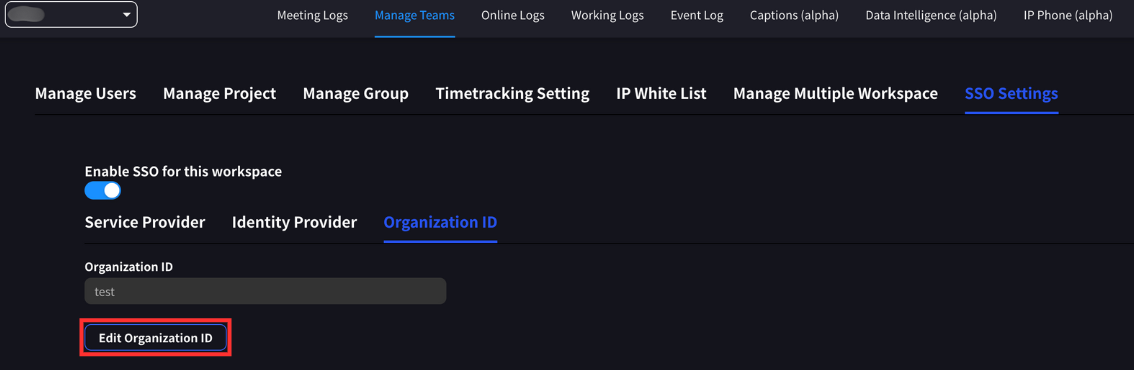
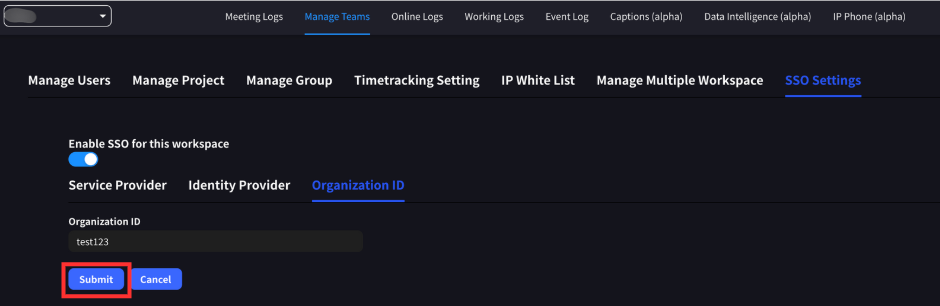
Define Organization ID
Define the organization ID. This must be a unique string of at least 3 characters and maximum 20 characters.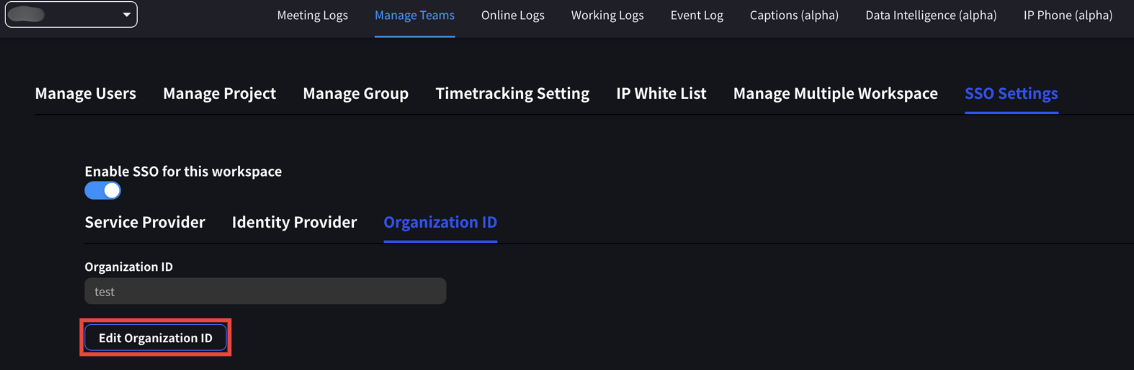
4
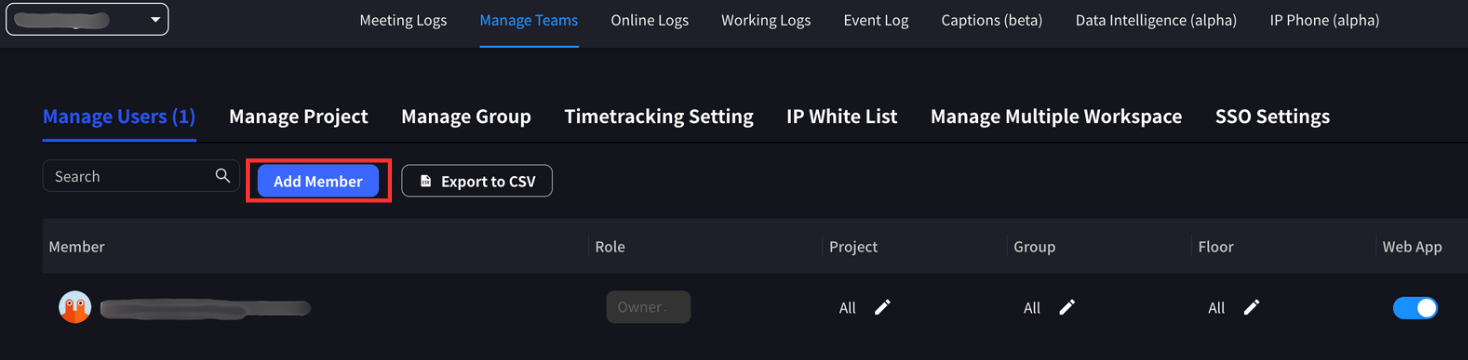
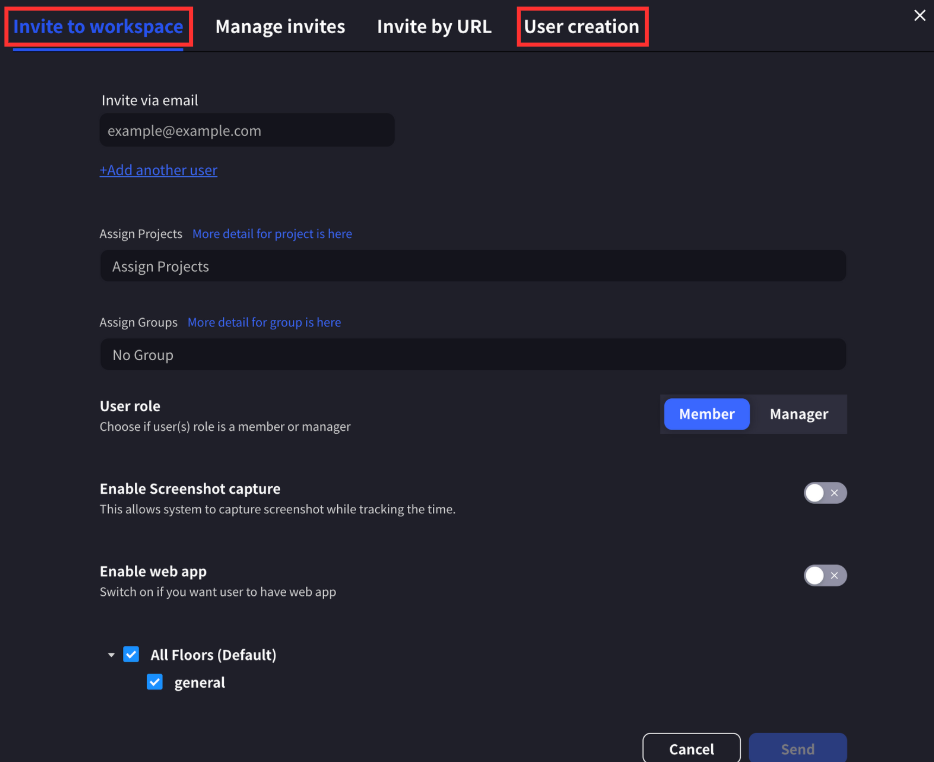
Add Users
Add users to the workspace. User email addresses must match the email addresses of users selected in the Microsoft Entra ID configuration.Users can be added by either invitation or direct creation.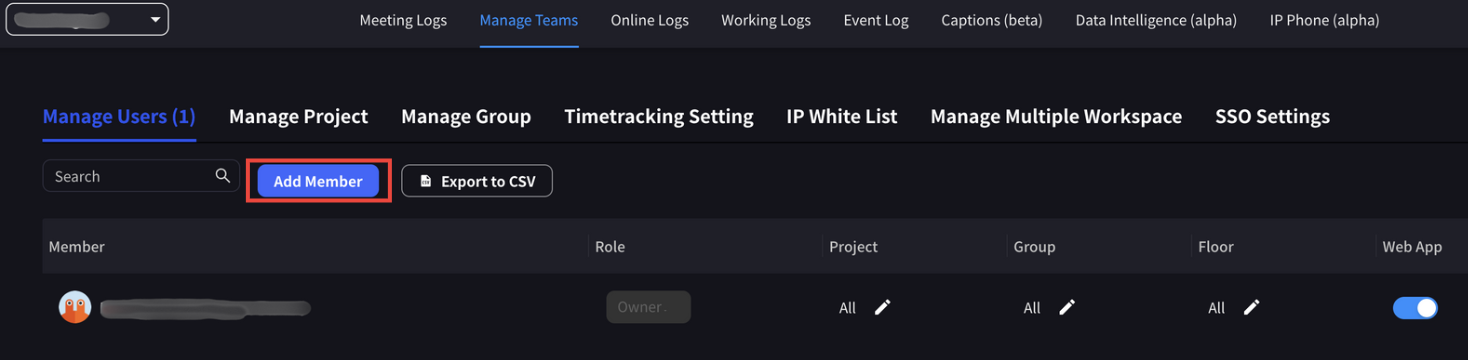
Logging in with SSO
Once SSO is configured in the workspace:- Owners and Managers: Can log in to VoicePing using other methods as well
- Member Users: Authentication via SSO is required
Login Steps
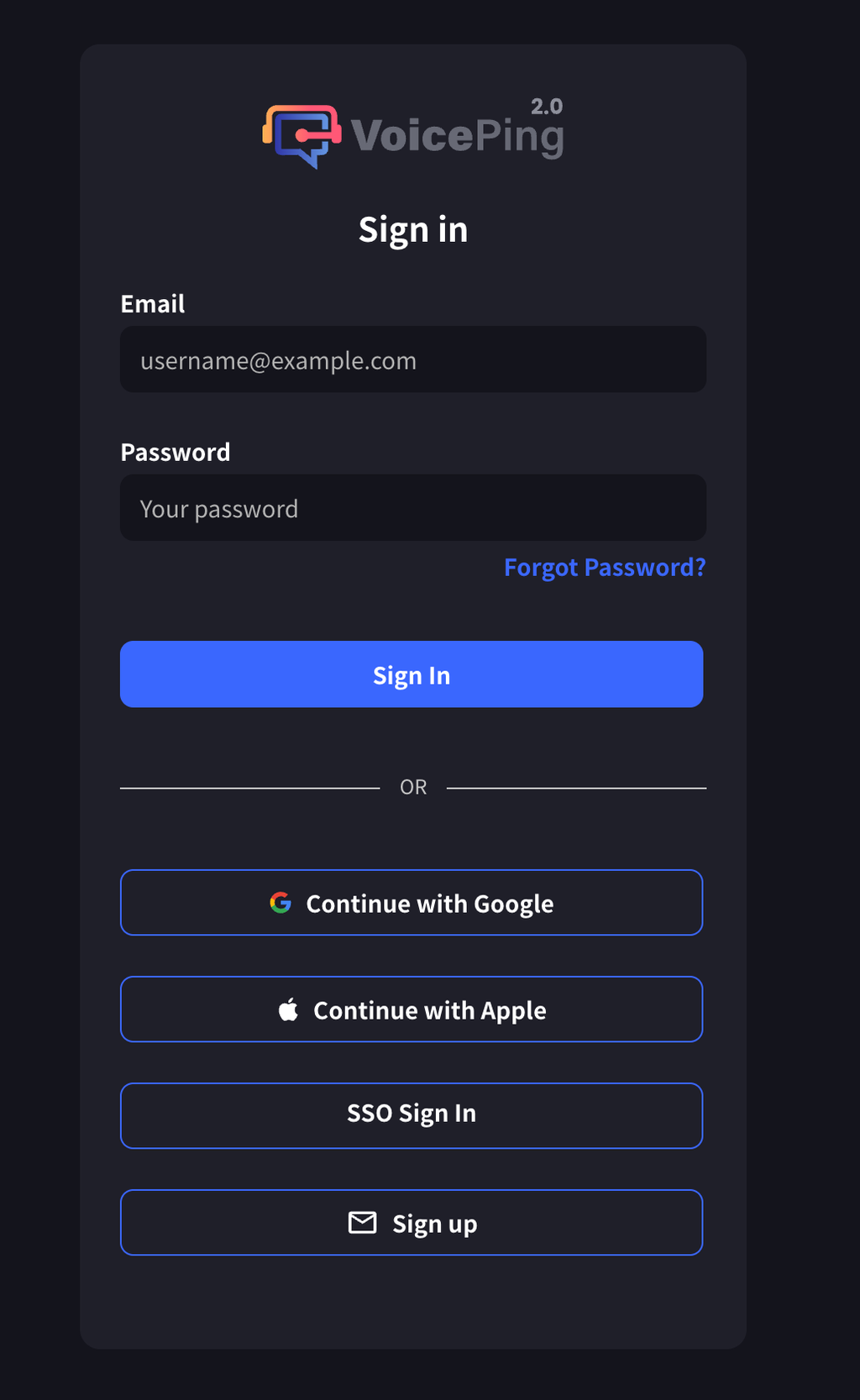
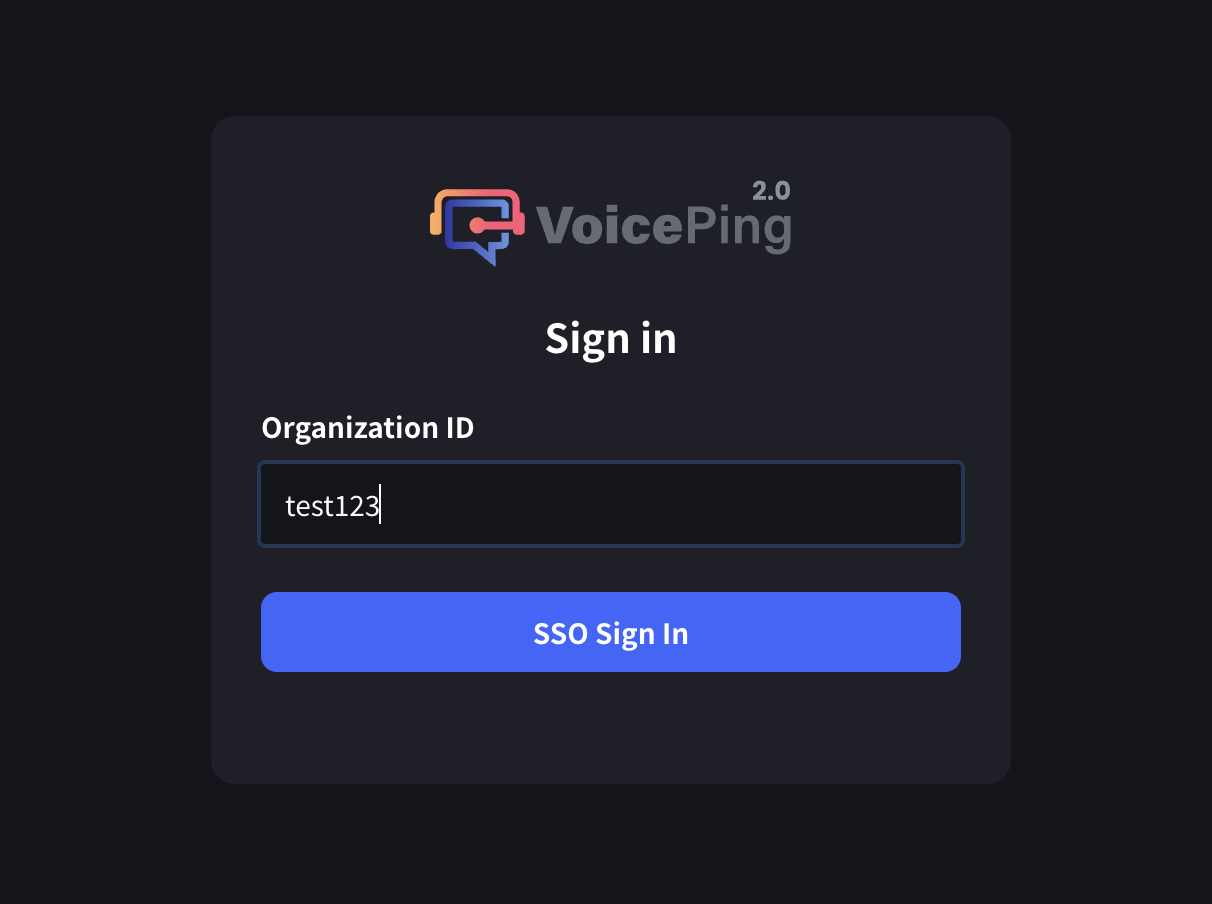
- Go to the VoicePing sign-in page
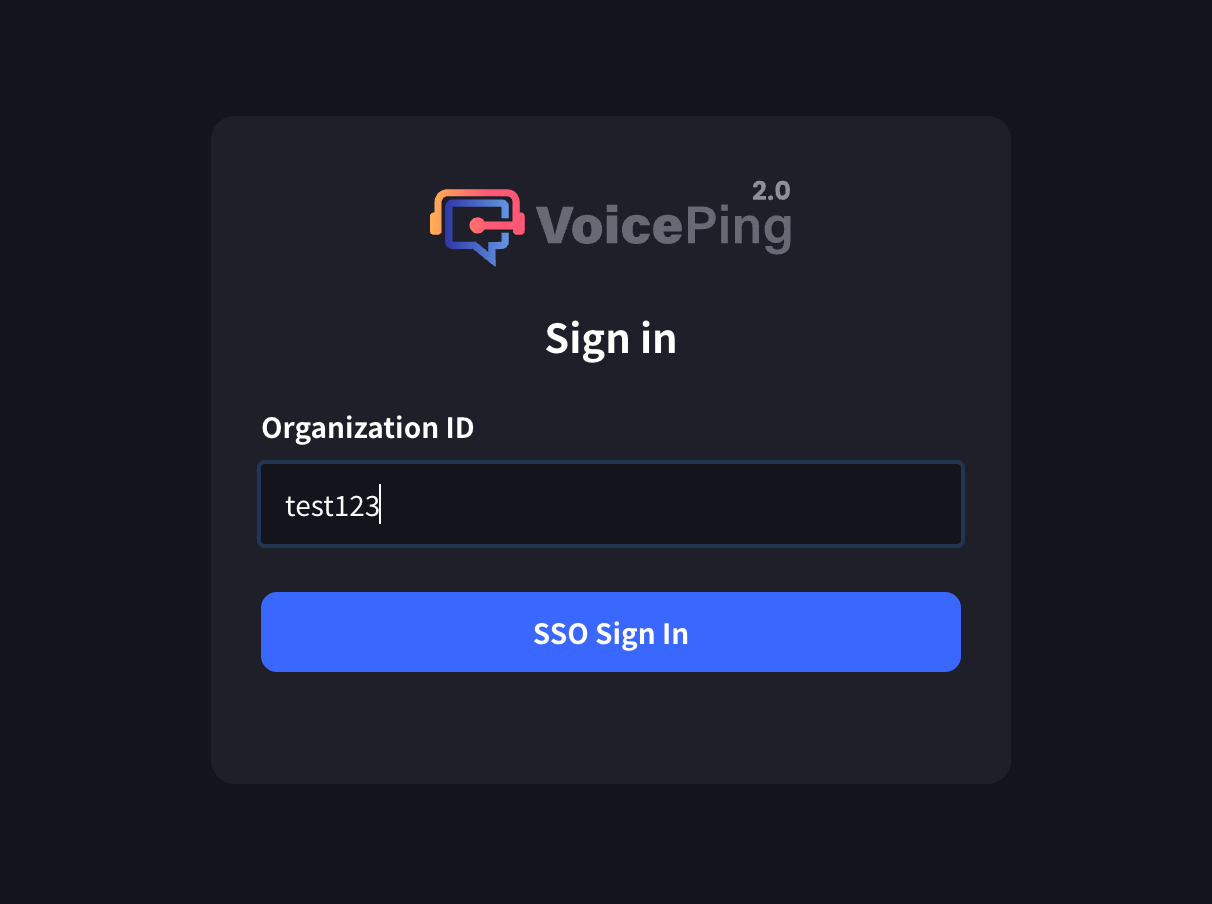
- Click the “SSO Sign In” button
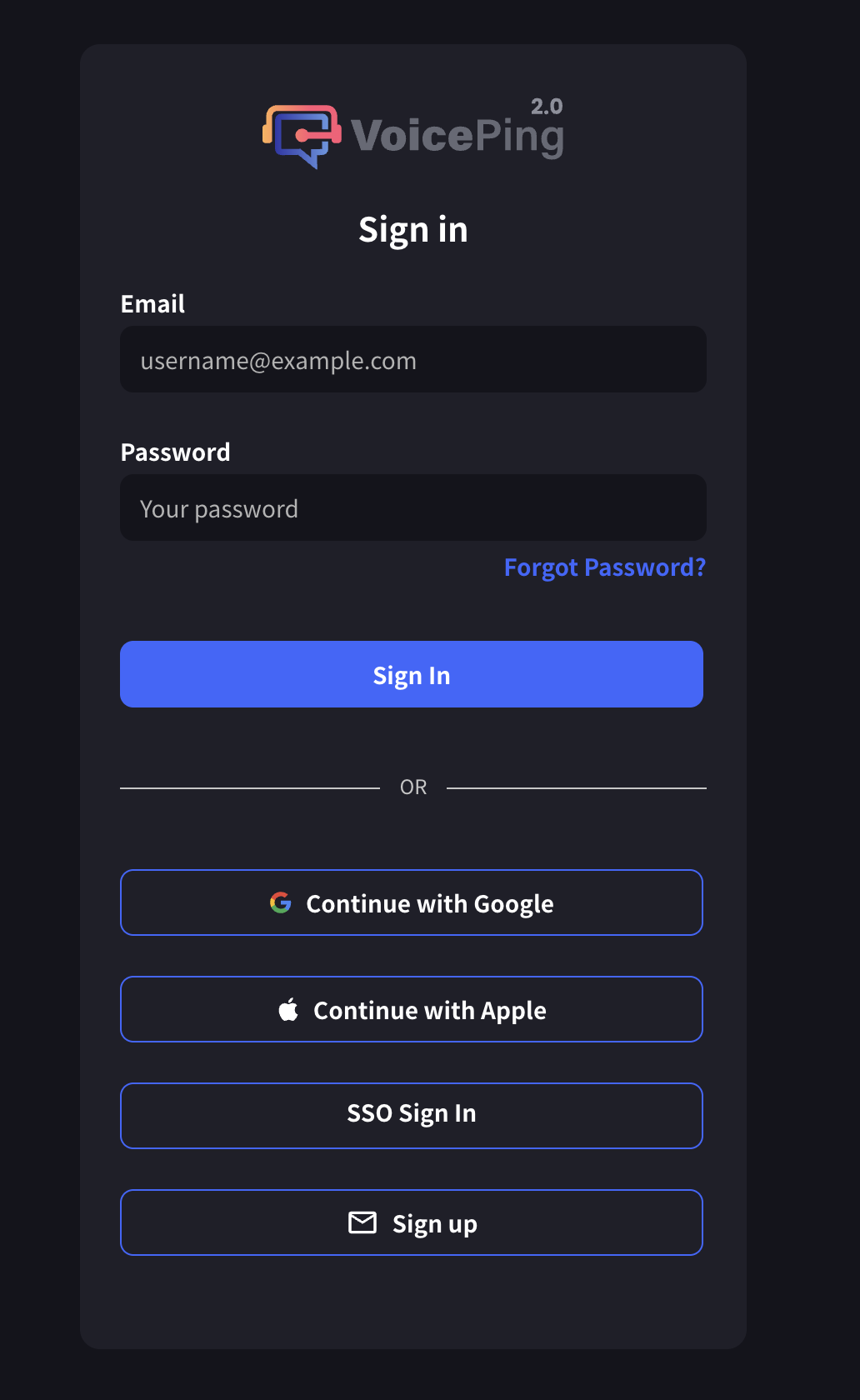
- Enter organization ID
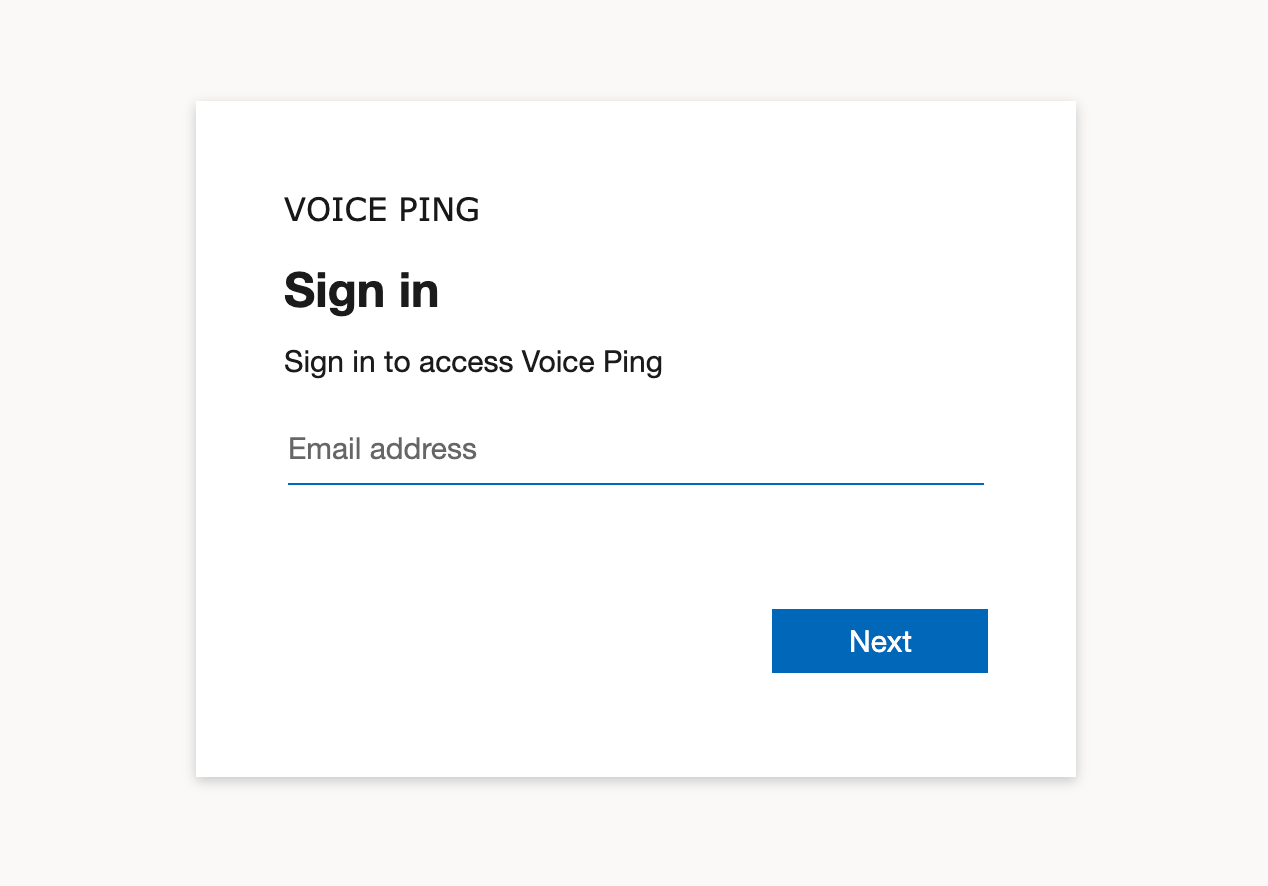
- Authenticate on the Microsoft Entra ID authentication page

## Official Links