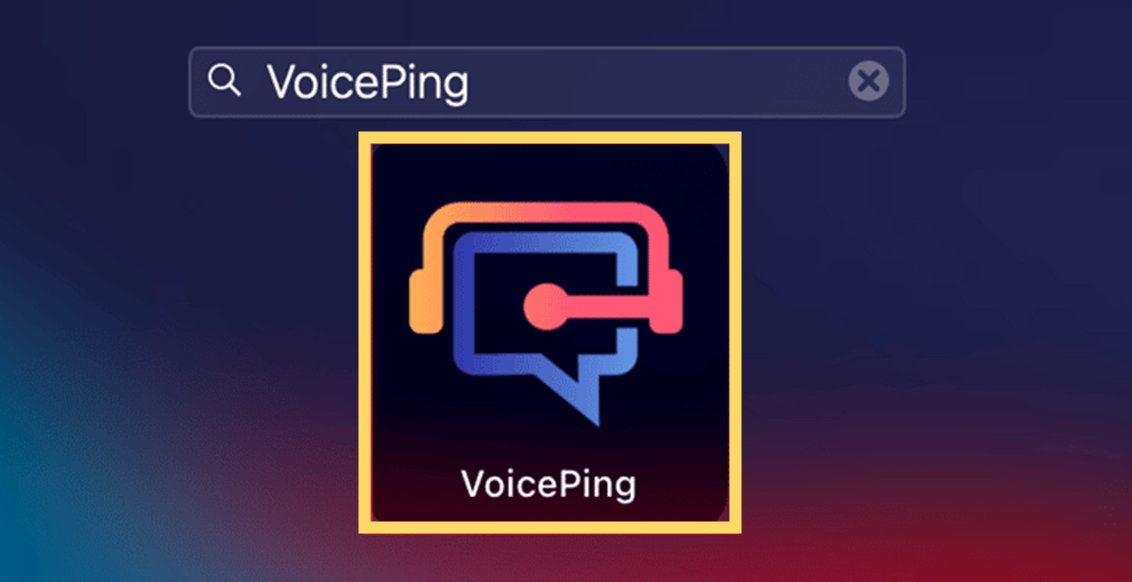
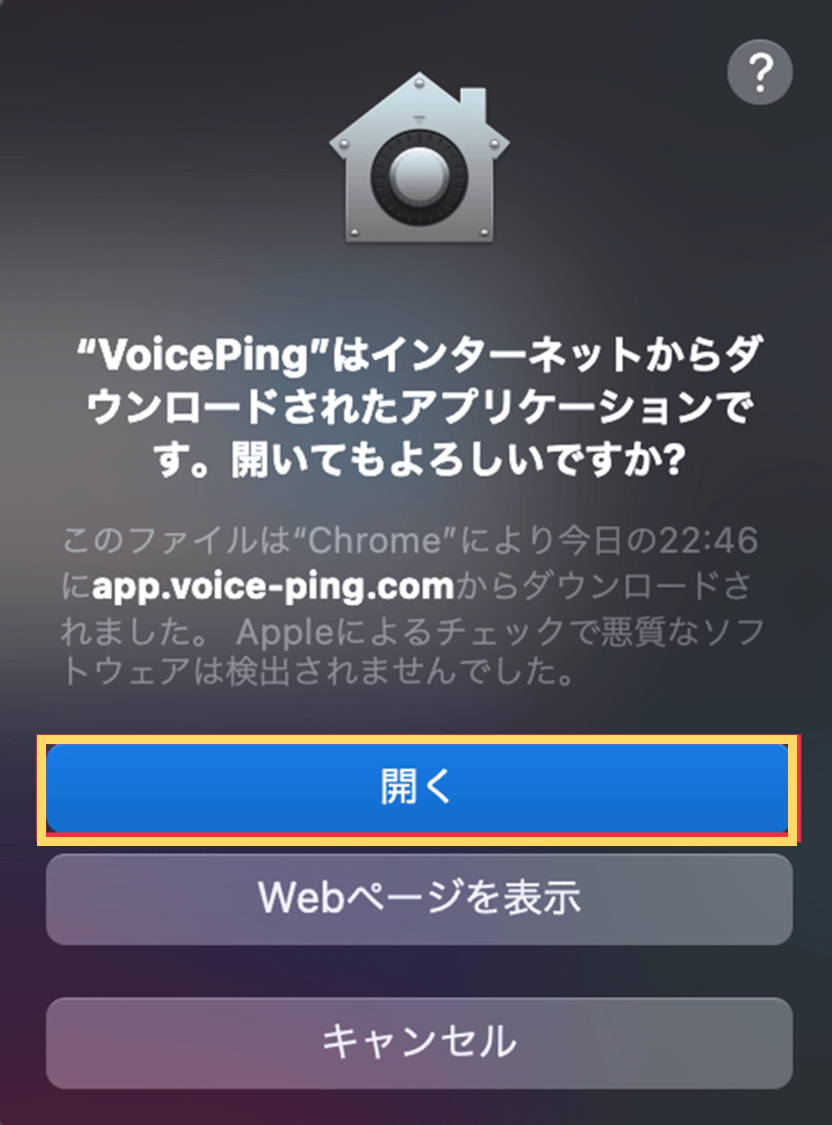
Obtaining URL
Click the invitation URL sent by your manager. If you don’t have the invitation URL, ask your manager to issue one.Create Account
When you click the received invitation link, you will be taken to the member registration page.When Opening Invitation Link (URL) on PC
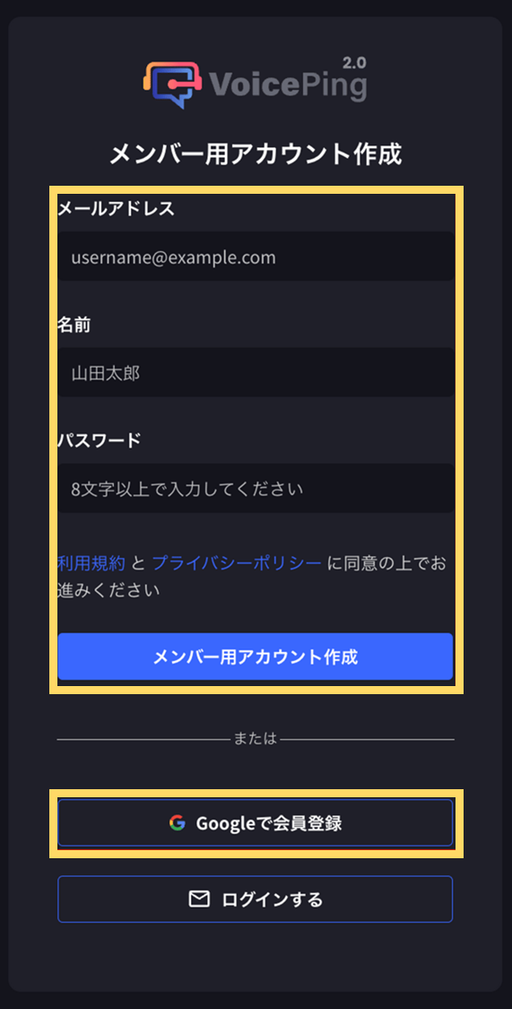
- Enter email address, name, and password, then click “Create member account” button. If you want to register using a Google account, click “Sign up with Google” button and log in.
If you received the invitation link via email, you need to enter the received email address.
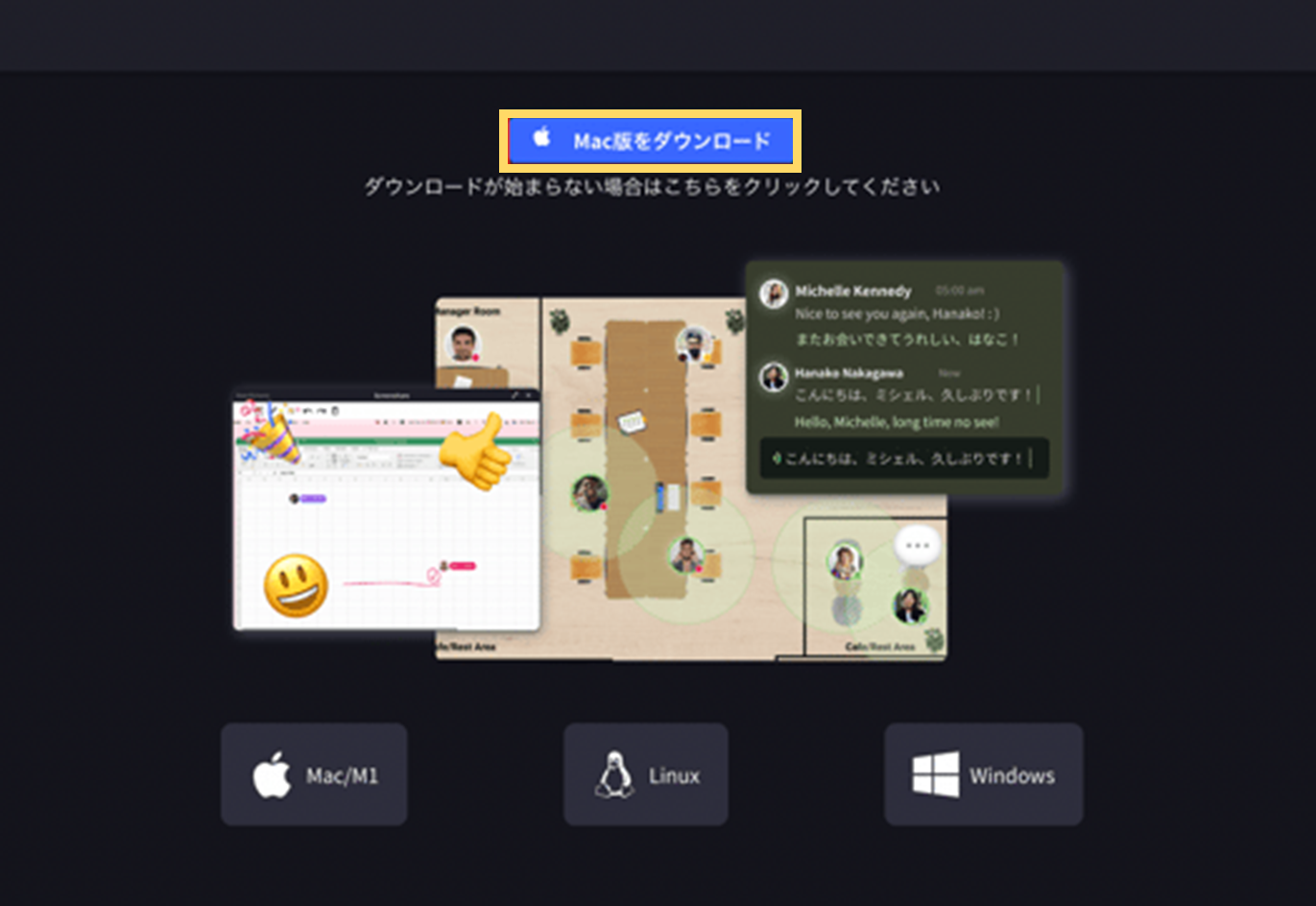
- Download will start automatically. If download doesn’t start, click the “Download for Mac” button.
When Opening Invitation Link (URL) on Tablet or Smartphone
- Enter email address, name, and password, then click “Create member account” button. If you want to register using a Google account, click “Sign up with Google” button and log in.
If you received the invitation link via email, you need to enter the received email address.
- “Allow” microphone access
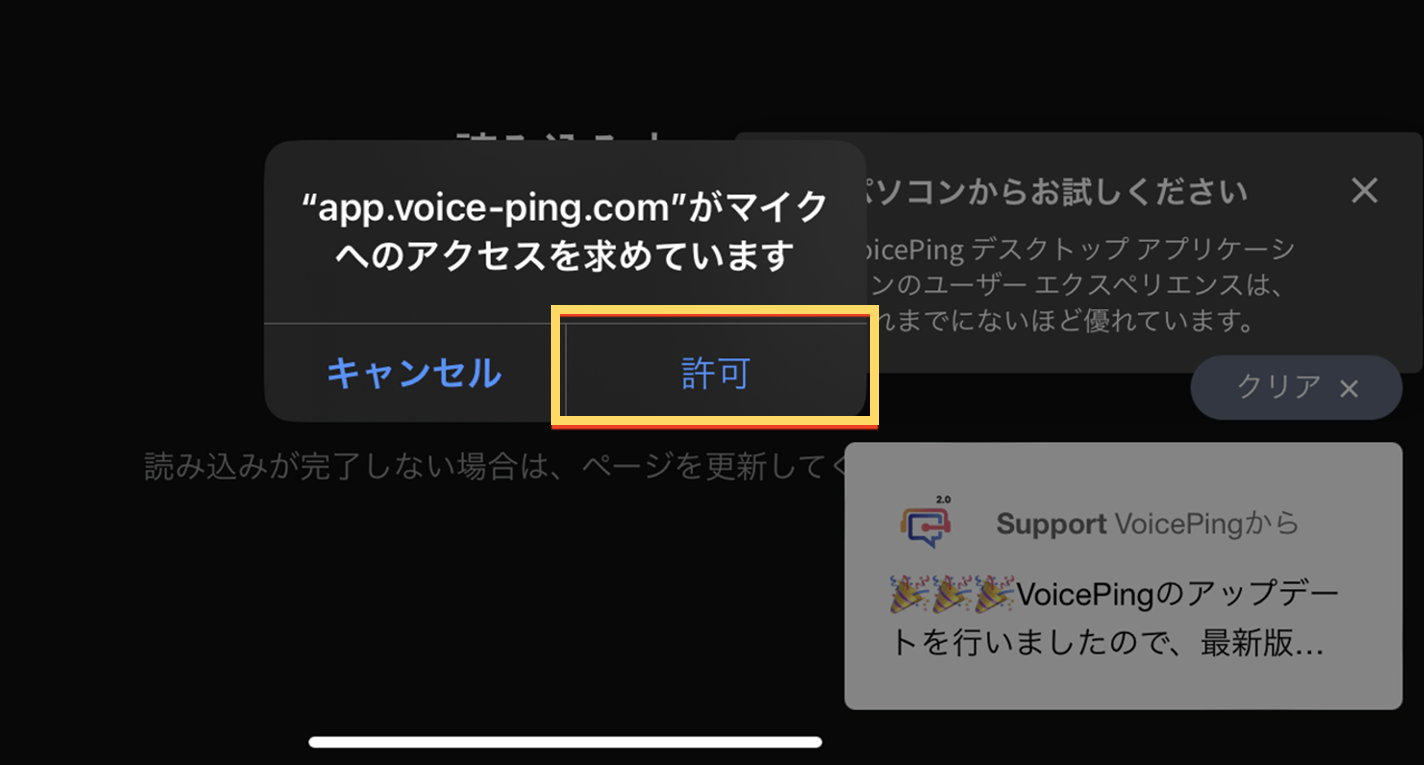
- Access VoicePing floor from browser

Install Desktop App
Download Desktop App
If you completed registration on PC, the app will download automatically. If download is already complete, proceed to app installation. If you registered from mobile and want to download the PC app, please visit the PC Download page to download.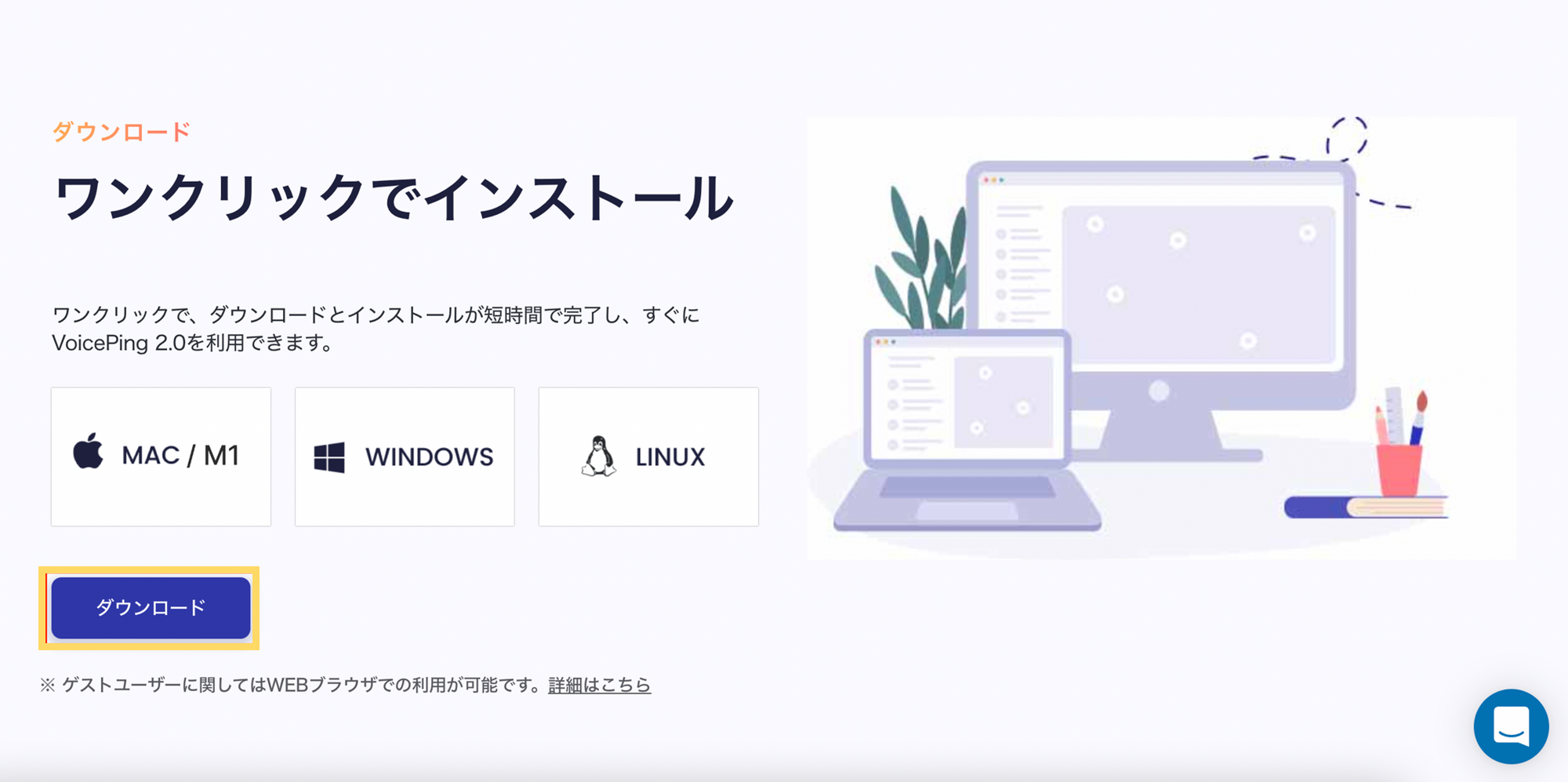
Install App
- Windows OS
- Mac OS
- Run the downloaded “voice-ping.exe” file. After installation, the app will launch.


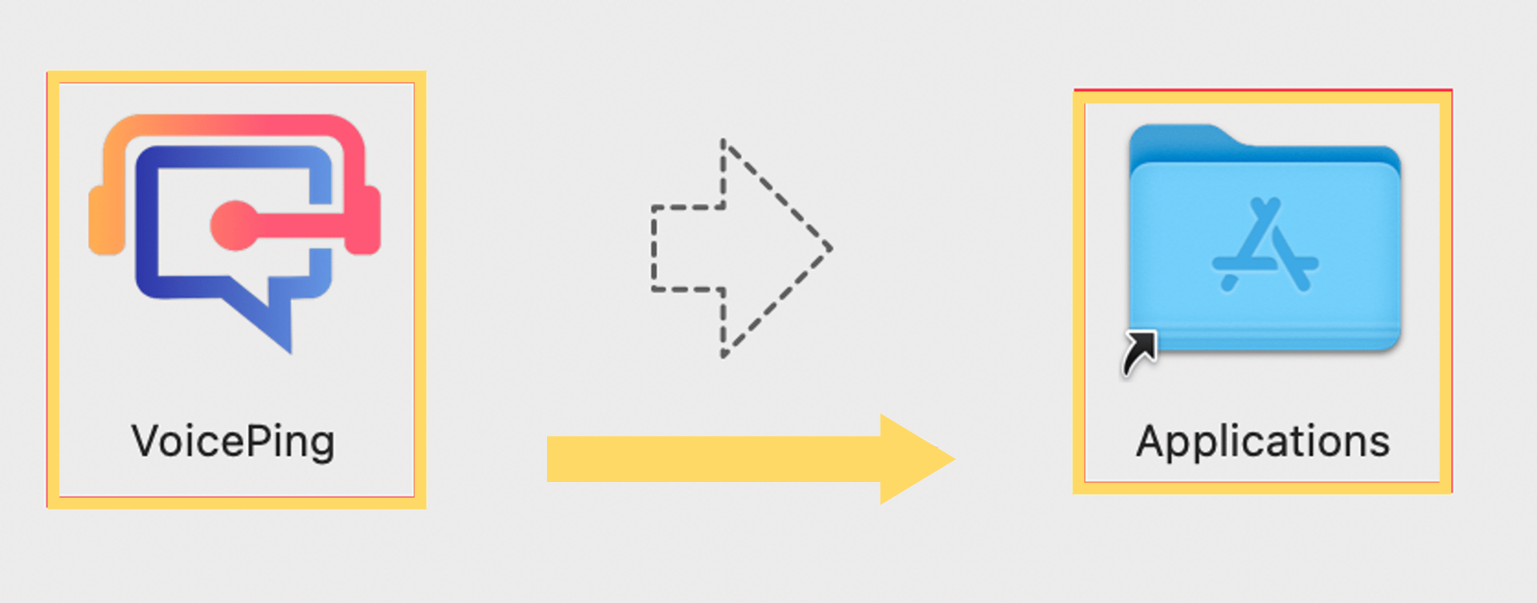
Login
Once app installation is complete, log in with your registered email address and password.