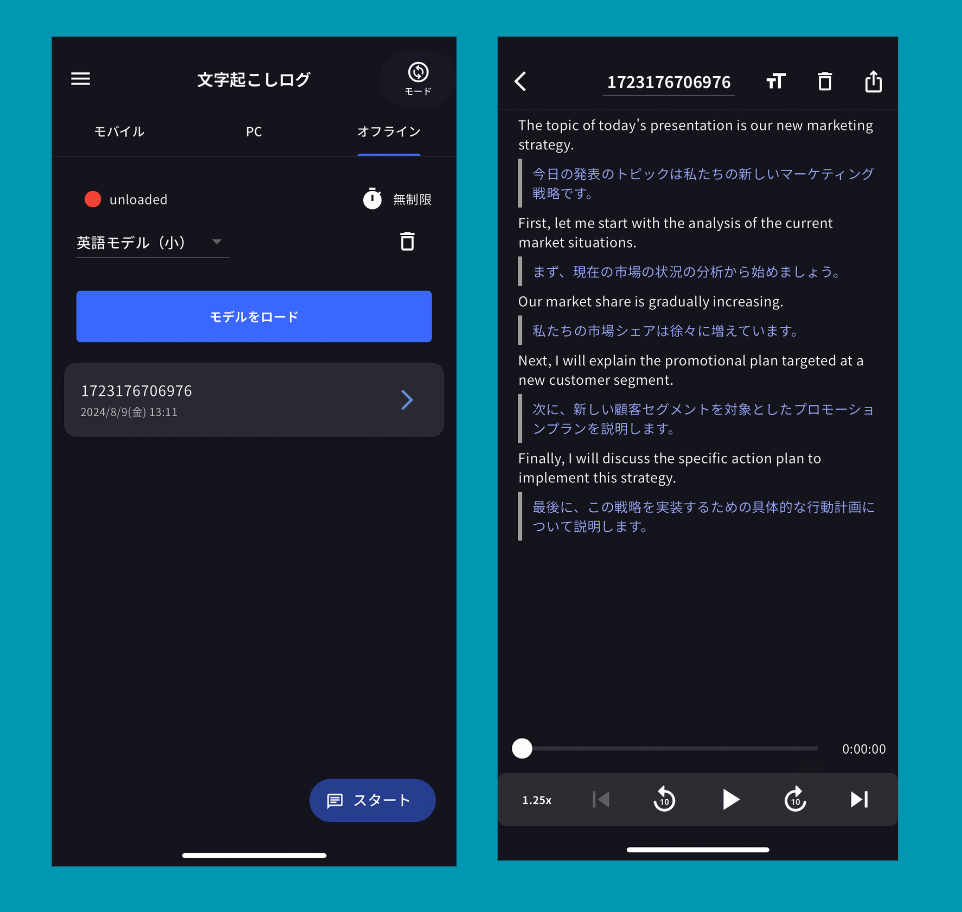
Offline Translation
This feature is available on iOS devices.
[Usage Time]
- Free version: 60 minutes/day
- Paid version: Unlimited
Feature Description
-
Available Offline
- Translation is possible anytime, anywhere without an internet connection. Security is maintained without worrying about external data leakage.
-
iOS Device Support
- Your existing iOS device can be used as a translation device as is. No additional equipment required.
-
Multilingual Support
- Supports 43 languages, so you can use it confidently for overseas travel and business.
-
Text Recording and Translation Log Review
- You can easily check text records and review translation logs at any time.
How to Use
1. English ➡️ Other Language Translation
Download English Model
- Open VoicePing mobile app
- Tap “Offline”
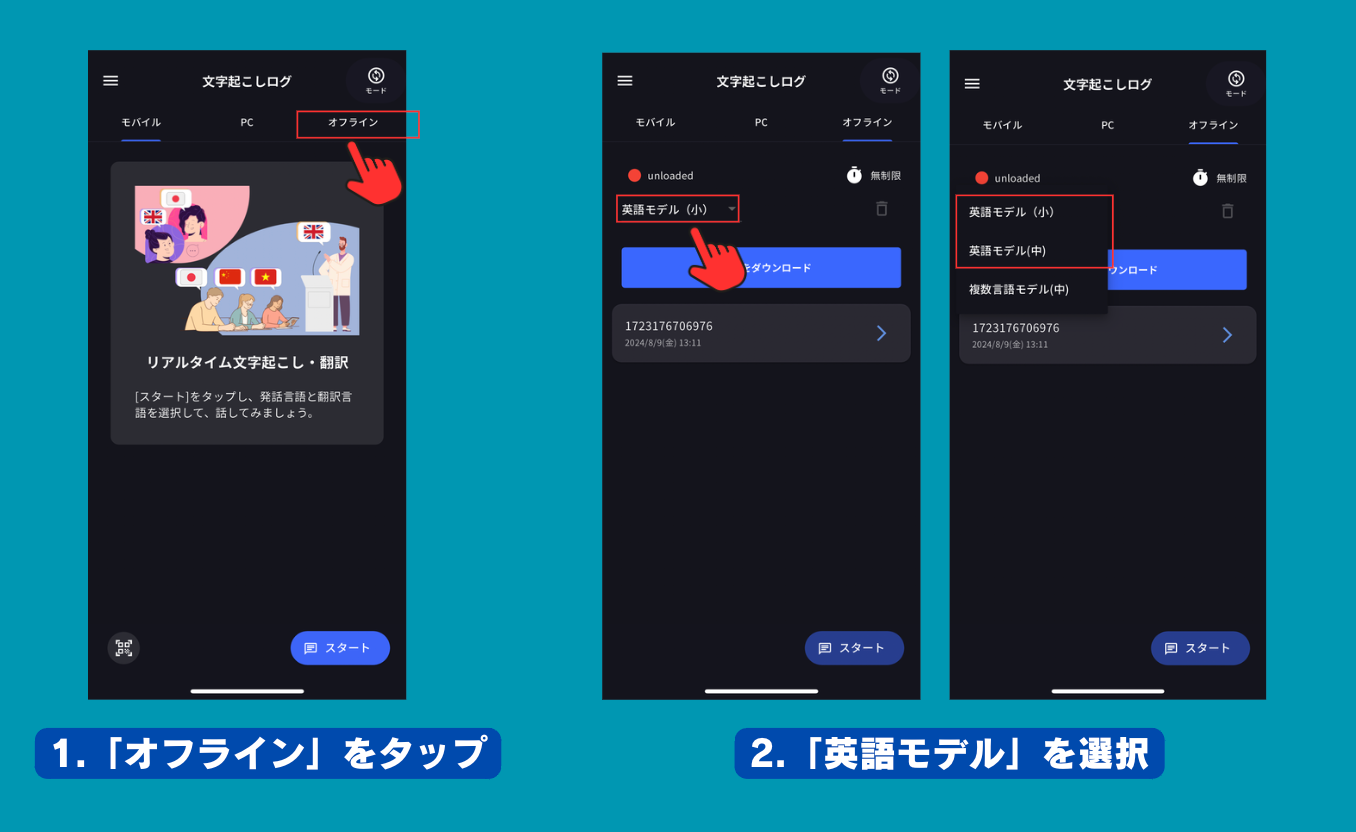
- Select “English Model”
What is the difference between English Model (Small) and English Model (Medium)?The English (Small) model has a small capacity and can be downloaded quickly and easily. The English (Medium) model has a relatively large capacity and supports specific iPhone devices while providing more accurate translation.
Which iPhone devices can use English Model (Medium)?Please check from the table below
| Model | English Model (Small) | English Model (Medium) |
|---|---|---|
| iPhone15 series | ⭕️ | ⭕️ |
| iPhone14 series | ⭕️ | ⭕️ |
| iPhone13 Pro Max, 13 Pro | ⭕️ | ⭕️ |
| iPhone13, 13 mini | ⭕️ | ❌ |
| iPhone12 Pro Max, 12 Pro | ⭕️ | ⭕️ |
| iPhone12, 12 mini | ❌ | ❌ |
| iPhoneSE (3rd generation) | ⭕️ | ❌ |
| iPhoneSE (2nd generation) | ❌ | ❌ |
| Previous models | ❌ | ❌ |
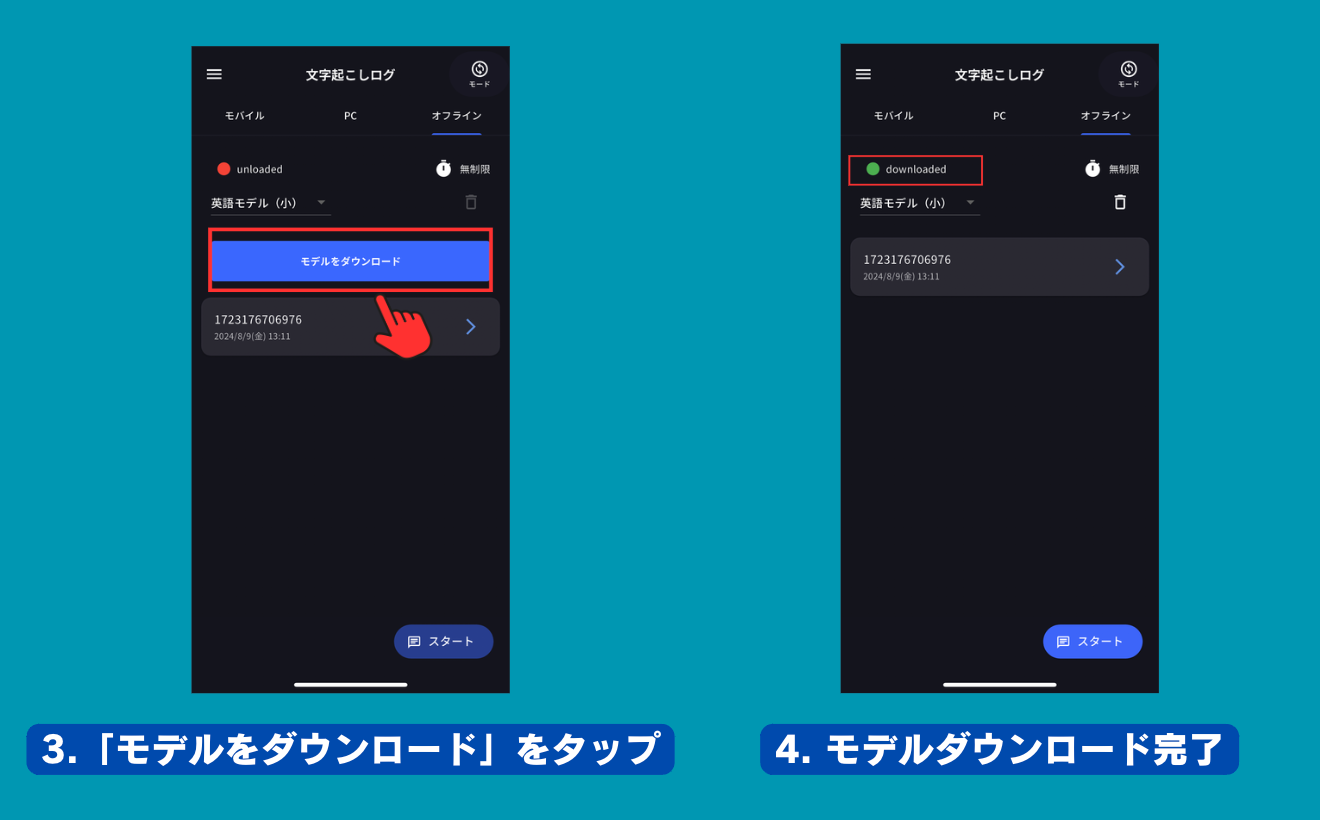
- Tap “Download Model”
- Model download complete
Use in Offline Environment
- Open VoicePing app
- When accessing offline, the login screen will appear
- Tap “Offline Transcription”
- Load English model
- Tap “Start”
- Select translation language
- Unmute the microphone and start voice recognition
Regarding Translation Languages Available OfflineRegarding translation languages available offline, only languages that have been used once online are available offline. For example, if you used Korean, English, and Japanese online, offline translation is also limited to these languages.If you want to use a specific language offline, we recommend using that language once online in advance.
2. Translation from Multiple Languages (Specific iPhone Devices Supported)
Which iPhone devices can use this feature?Please check from the table below
| Model | Support Status |
|---|---|
| iPhone15 series | ⭕️ |
| iPhone14 series | ⭕️ |
| iPhone13 Pro Max, 13 Pro | ⭕️ |
| iPhone13, 13 mini | ❌ |
| iPhone12 Pro Max, 13 Pro | ⭕️ |
| iPhone12, 12 mini | ❌ |
| iPhoneSE (3rd generation) | ❌ |
| iPhoneSE (2nd generation) | ❌ |
| Previous models | ❌ |
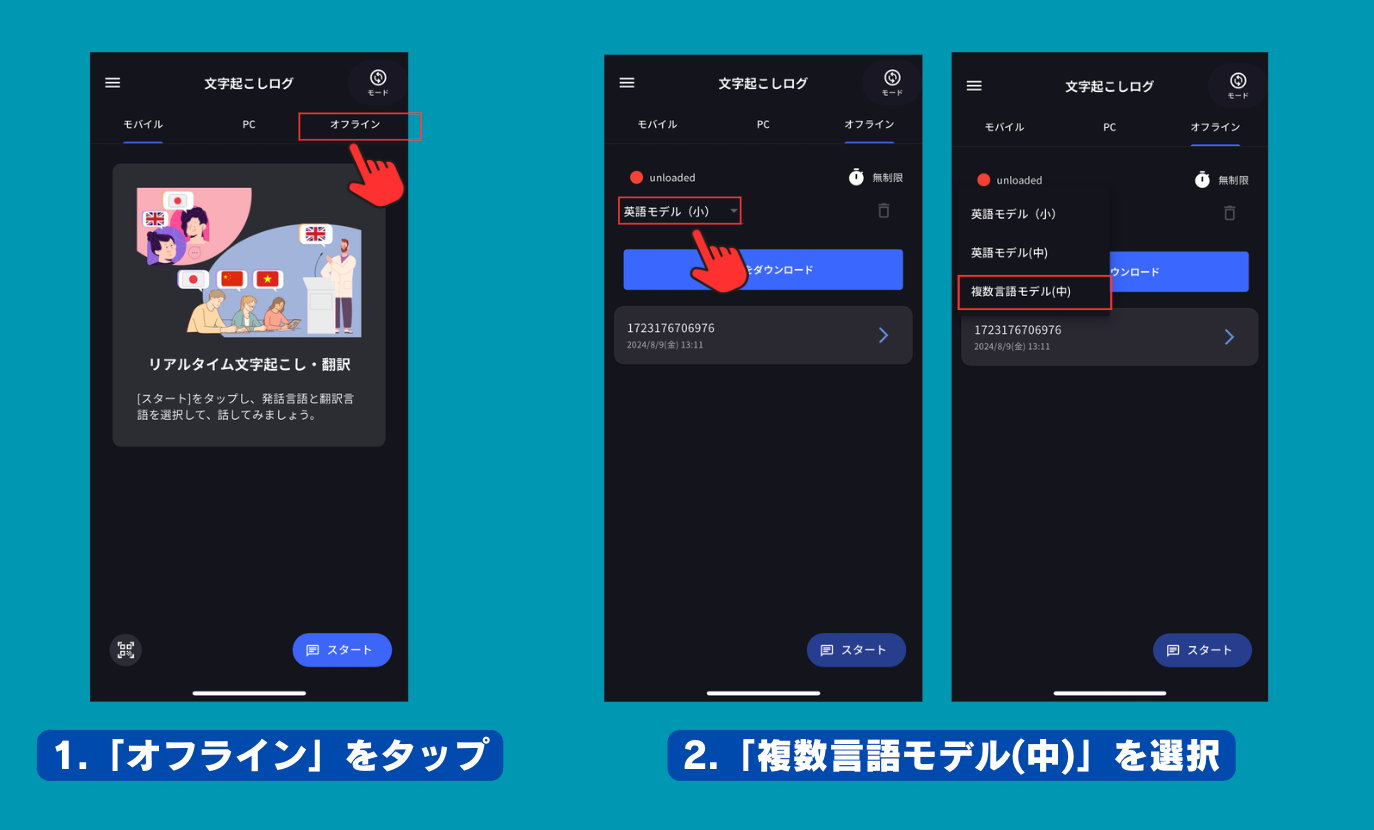
Download Multilingual Model
- Open VoicePing mobile app
- Tap “Offline”
- Select “Multilingual Model”
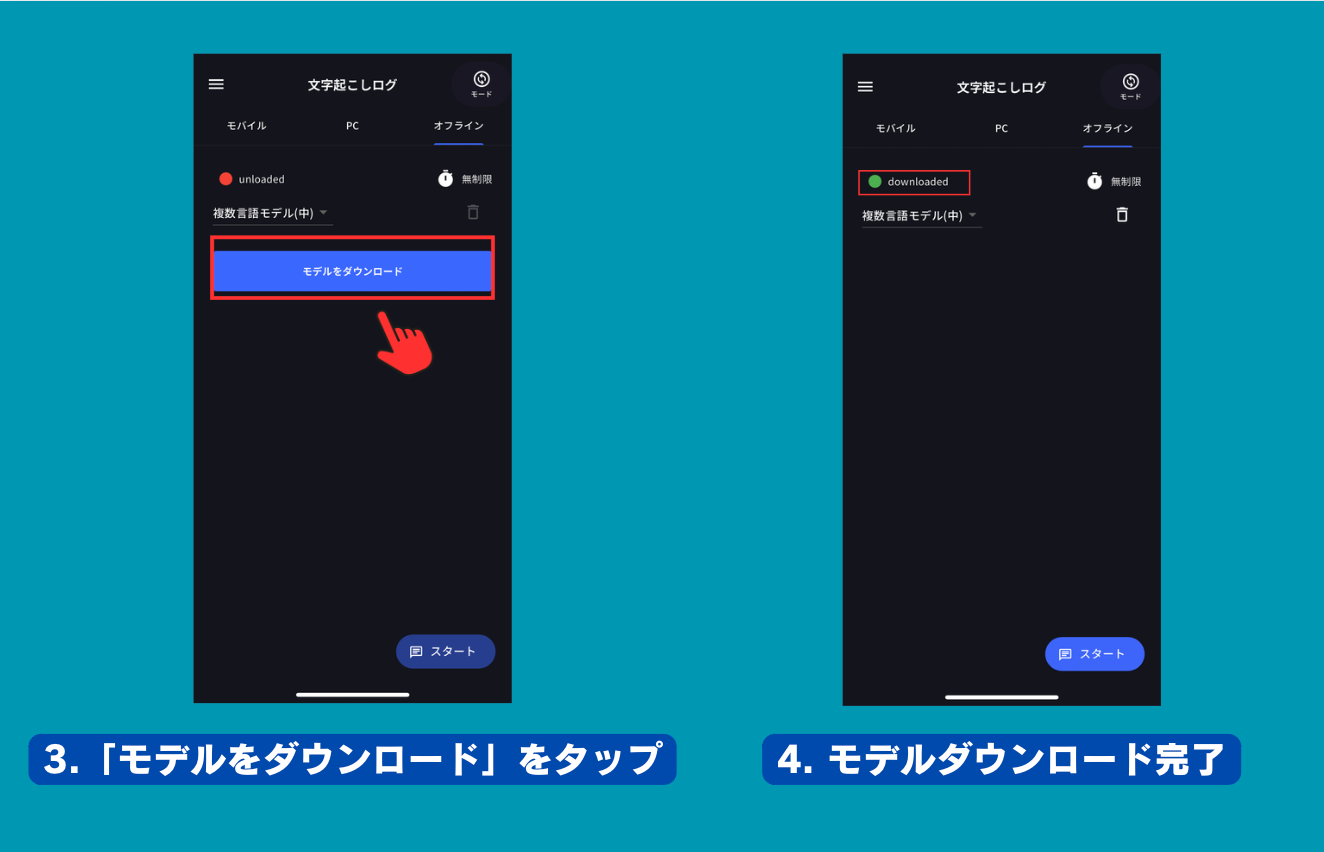
- Tap “Download Model”
- Model download complete
Use in Offline Environment
- Open VoicePing app
- When accessing offline, the login screen will appear
- Tap “Offline Transcription”
- Load multilingual model
- Tap “Start”
- Select transcription language & translation language
- Unmute the microphone and start voice recognition
Regarding Translation Languages Available Offline*Transcription language supports 43 languagesRegarding translation languages available offline, only languages that have been used once online are available offline. For example, if you used Korean, English, and Japanese online, offline translation is also limited to these languages.If you want to use a specific language offline, we recommend using that language once online in advance.
Check Translation Log
Offline transcription and translation logs are saved in the “Offline” section along with audio recordings.